

Mastering Mobile Payments: How to Effortlessly Pay with Your iPhone 16

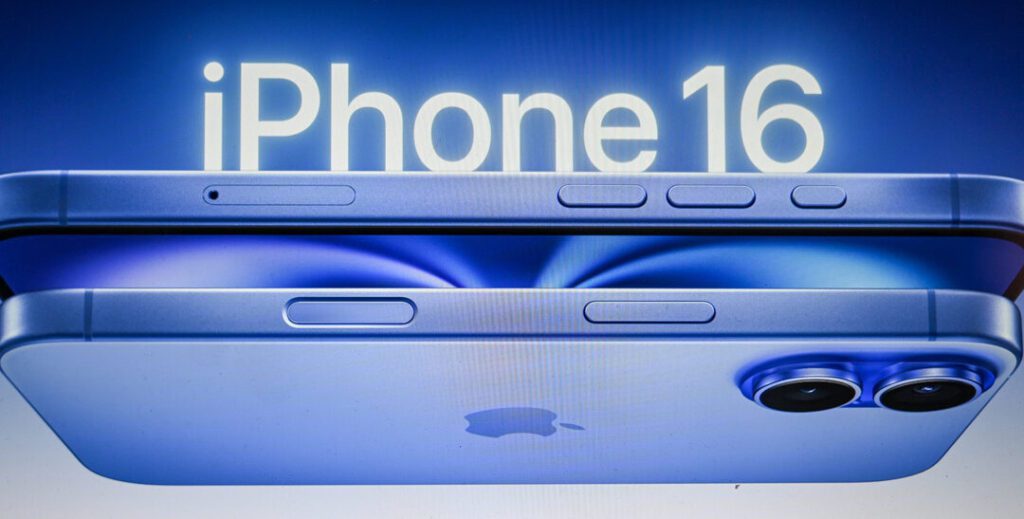
How to Make Payments with Your iPhone 16: A Step-by-Step Guide
Making payments with your iPhone 16 is a seamless process thanks to the integrated Apple Pay system. Here's a step-by-step guide on how to use this convenient feature:
Step 1: Set Up Apple Pay
Before you can make payments, ensure that Apple Pay is set up on your device.
- Open the Wallet app on your iPhone 16.
- Tap the '+' button to add a new credit or debit card.
- Follow the prompts to add your card details either by entering them manually or using your iPhone's camera to capture them.
- Verify your card with your bank if necessary.
Step 2: Authenticate Your Identity
For security purposes, you need to authenticate your identity using Face ID, Touch ID, or your passcode.
- If you're using Face ID, double-click the side button and glance at your screen to authenticate.
- For Touch ID, rest your finger on the sensor.
- Alternatively, enter your passcode if required.
Step 3: Make a Payment in Stores
To pay at a physical store that accepts contactless payments:
- Look for the contactless payment symbol at the checkout.
- Hold your iPhone near the contactless reader with your finger on Touch ID or using Face ID.
- Wait for a vibration or beep to confirm that the payment has been made.
Step 4: Make a Payment within Apps or Websites
When shopping in apps or on websites:
- Choose Apple Pay as your payment method at checkout.
- Review your payment information and contact details.
- Confirm the payment with Face ID, Touch ID, or your passcode.
Step 5: Check Your Transaction History
After making a payment, you can view your transaction history to keep track of your spending.
- Open the Wallet app.
- Select the card you used for the payment.
- Scroll down to see recent transactions.
By following these steps, you can enjoy the convenience and security of making payments with your iPhone 16. Whether you're in a store, in an app, or on the web, Apple Pay offers a quick and secure way to complete transactions without having to carry physical cards or cash.
How do I set up Apple Pay on my iPhone 16 to make payments?
To set up Apple Pay on your iPhone 16:
1. Open the Wallet app.
2. Tap the "+" sign to add a new card.
3. Follow the prompts to add your credit or debit card details.
4. Verify your card with your bank if required.
5. Once verified, your card will be added to Apple Pay, and you can start making payments.
What are the security features of using iPhone 16 for contactless payments?
The iPhone 16 offers several security features for contactless payments, including Face ID and Touch ID for biometric authentication, Secure Element, a dedicated chip that stores payment information securely, and Apple Pay, which uses tokenization to replace card numbers with unique transaction codes. Additionally, all transactions require a device-specific dynamic security code and are protected by end-to-end encryption.
Can I use my iPhone 16 to pay internationally, and are there any additional fees?
Yes, you can use your iPhone 16 to make international payments if it supports Apple Pay and the country you're in accepts it. However, be aware of any additional fees your bank may charge for foreign transactions or currency conversion. Always check with your bank before traveling to understand all potential costs.

Mastering Mobile Payments: A Step-by-Step Guide to Using Apple Pay on Your iPhone

Apple Warranty Duration: Everything You Need to Know

Exploring the X Factor: A Comprehensive Review of the Apple TV Experience

Top Tips for Mastering Your Apple Apps: Enhance Your iOS Experience

Exploring the Variants: A Comprehensive Guide to Apple Watch Series 7 Models

Exploring the Tipe X Phenomenon: How Apple Music is Revolutionizing Music Streaming for Fans
Go up
Deja una respuesta