
Unlocking Seamless Streaming: The Ultimate Guide to Chrome IPTV Players

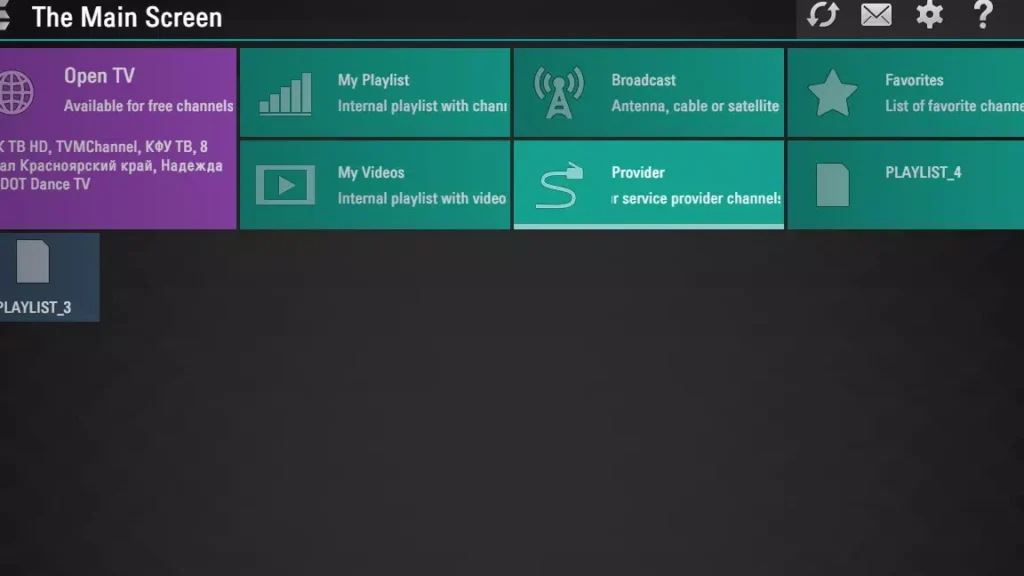
How to Set Up and Use a Chrome IPTV Player for Seamless Streaming
If you're looking to dive into the world of Internet Protocol Television (IPTV) and want to use your Chrome browser for a seamless streaming experience, setting up a Chrome IPTV Player is a straightforward process. Here's how you can get started:
Step 1: Choose Your IPTV Provider
Before you can use an IPTV player, you need to have an active subscription with an IPTV service provider. This provider will give you access to a playlist file or URL that contains all the channels you're subscribed to.
Step 2: Install a Chrome IPTV Player Extension
To watch IPTV on Chrome, you'll need to install an extension that functions as an IPTV player. You can find these extensions in the Chrome Web Store. Look for one with good reviews and a high user rating to ensure reliability.
Step 3: Configure the IPTV Player
After installing the extension, click on its icon in the Chrome toolbar to open it. You'll likely be prompted to enter the playlist file or URL provided by your IPTV service. Enter this information carefully to ensure a proper setup.
Step 4: Load Your Playlist
Once you've entered your playlist details, the IPTV player should load all available channels. Depending on the player, you might see them categorized by country, genre, or popularity.
Step 5: Customize Settings
Most IPTV players offer various settings to enhance your viewing experience. These may include video quality options, external player support, and EPG (Electronic Program Guide) integration. Adjust these settings to match your preferences and internet speed.
Step 6: Start Streaming
With everything set up, simply click on a channel to start streaming. The content should begin playing directly within your Chrome browser.
Step 7: Manage Your Channels
If your IPTV player allows it, you can often manage your channels by adding favorites, creating custom lists, or hiding channels you're not interested in.
Step 8: Stay Secure
When streaming content online, especially through IPTV services, it's important to consider using a VPN (Virtual Private Network) to protect your privacy and security.
By following these steps, you can set up and use a Chrome IPTV Player for seamless streaming of live TV channels and on-demand content right from your browser. Remember to always use IPTV services responsibly and in accordance with your local laws and regulations.
What are the best Chrome IPTV player extensions available for streaming?
Some of the best Chrome IPTV player extensions for streaming include IPTV Player, TV Cast, and Play HLS M3u8. These extensions are well-regarded for their ease of use and compatibility with various IPTV streams.
How do you set up an IPTV player on Google Chrome?
To set up an IPTV player on Google Chrome, you can use a Chrome extension designed for IPTV streaming. Follow these steps:
1. Open the Google Chrome browser.
2. Go to the Chrome Web Store and search for an IPTV player extension such as "TV Cast" or "IPTV Player".
3. Click "Add to Chrome" to install the extension.
4. Once installed, click on the extension icon and enter your IPTV service credentials or load your m3u playlist.
5. Start streaming your IPTV channels directly within Google Chrome.
Ensure that you have a valid subscription from an IPTV provider and a stable internet connection for the best experience.
Can you integrate an EPG (Electronic Program Guide) with a Chrome IPTV player, and if so, how?
Yes, you can integrate an EPG (Electronic Program Guide) with a Chrome IPTV player. To do so, you typically need to:
1. Obtain the EPG URL from your IPTV service provider.
2. Open the Chrome IPTV player and go to its settings or configuration section.
3. Look for the option to add or configure EPG and enter the provided EPG URL.
4. Save the settings and refresh the player to load the program guide.
Make sure that the IPTV player supports EPG integration, as not all players have this feature.

Deja una respuesta