
Unlock Endless Entertainment: The Ultimate Guide to IPTV Kodi Lists

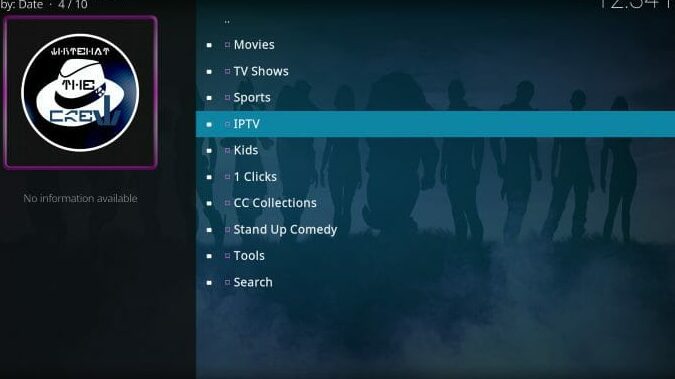
How to Set Up and Enjoy IPTV Kodi Lista for Endless Streaming
Setting up IPTV Kodi Lista can transform your streaming experience, offering a vast array of television channels from around the globe directly on your Kodi device. Here's how you can set it up and start enjoying endless streaming:
1. Install Kodi: First, ensure that you have the latest version of Kodi installed on your device. Kodi is available for download on various platforms including Windows, macOS, Android, and iOS.
2. Enable Unknown Sources: Before you can install any third-party add-ons, you need to enable installations from unknown sources. Navigate to Settings > System Settings > Add-ons and toggle on 'Unknown Sources'. A warning message will appear; accept it to proceed.
3. Install PVR IPTV Simple Client: The PVR IPTV Simple Client is an essential add-on for watching IPTV. To install it, go to Settings > Add-ons > Install from repository. Select the "Kodi Add-on repository," find the "PVR clients" category, and then install the PVR IPTV Simple Client.
4. Configure M3U Playlist URL: After installing the PVR IPTV Simple Client, you'll need to configure it with an M3U playlist URL which contains the IPTV channels. Go to Add-ons > My Add-ons > PVR Clients > PVR IPTV Simple Client > Configure. Under the General tab, enter the M3U playlist URL provided by your IPTV service provider.
5. Load EPG (Electronic Program Guide): If your provider offers an EPG URL, you can also load it in the PVR IPTV Simple Client settings under the EPG section. This will give you an overview of the TV schedule.
6. Channel Groups and Logos: Some M3U playlists support channel groups and logos. You can enable these options within the settings of the PVR IPTV Simple Client to enhance your browsing experience.
7. Restart Kodi: After setting everything up, restart Kodi for the changes to take effect. Upon restarting, you should see a new section called "TV" on the main menu with all the IPTV channels loaded.
8. Enjoy Streaming: Now, navigate to the "TV" section on your Kodi home screen, select a channel, and enjoy endless streaming of live TV from around the world.
Remember, the quality and reliability of IPTV streaming largely depend on the service provider. Always choose a reputable IPTV service with a solid track record for best performance. Additionally, be aware of the legal implications of streaming certain content through IPTV services in your country.
How can I set up an IPTV list on Kodi?
To set up an IPTV list on Kodi, follow these steps:
1. Open Kodi and go to the Add-ons section.
2. Click on My Add-ons and then select PVR Clients.
3. Find and select PVR IPTV Simple Client.
4. If not installed, click Install; if already installed, click Configure.
5. In the settings, go to the General tab and select M3U Playlist URL.
6. Enter the URL of your IPTV list and click OK.
7. Restart Kodi for the changes to take effect.
Your IPTV channels should now be available in the TV section of Kodi.
What are the best IPTV add-ons for Kodi?
Some of the best IPTV add-ons for Kodi include Catch-Up TV & More, which offers a variety of live TV and catch-up content, cCloud TV for a wide range of international channels, and USTVNow which is great for US television channels. Always ensure you are using legal and legitimate add-ons, and consider using a VPN for privacy.
Are there any legal considerations when using IPTV lists on Kodi?
Yes, there are legal considerations when using IPTV lists on Kodi. It's important to ensure that the content accessed through IPTV lists is legally licensed for distribution and consumption. Using IPTV lists to stream pirated content is illegal and can lead to serious legal consequences. Always verify the legitimacy of the IPTV service and use official and authorized sources to stay within legal boundaries.

Deja una respuesta