
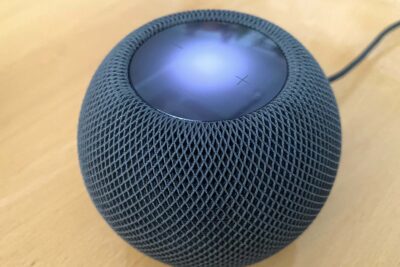
Seamless Audio Experience: How to Play Music from Your Mac to HomePod


How to Play Music from Your Mac to HomePod: A Simple Guide
Have you ever wondered how to fill your room with your favorite tunes using your Mac and HomePod? It's like having a personal DJ at your fingertips, but how do you get the party started? Keep reading, because we're about to dive into the simple steps that will turn your living space into a music haven.
What You Need to Know Before You Start
Before we get into the nitty-gritty of playing music from your Mac to your HomePod, let's make sure you have everything you need. First, ensure your Mac and HomePod are on the same Wi-Fi network. This is crucial for them to communicate with each other. Also, check that your devices are updated to the latest software versions to avoid any compatibility issues.
Step-by-Step: How to Connect Your Mac to HomePod
Now, let's get to the fun part. Here's a step-by-step guide on how to play music from the Mac to HomePod:
Using AirPlay
- Open the music app of your choice on your Mac. This could be iTunes, Apple Music, or any other compatible application.
- Start playing the song or playlist you want to hear.
- Look for the AirPlay icon (it looks like a triangle with circles emanating from it). You'll usually find it at the top of your music app or in the menu bar of your Mac.
- Click on the AirPlay icon, and a list of available devices will appear.
- Select your HomePod from the list. If you've given your HomePod a specific name, look for that name.
- Voilà! The music should now be playing through your HomePod.
Using System Preferences
- Click on the Apple logo at the top left corner of your screen and select 'System Preferences.'
- Choose 'Sound' and then click on the 'Output' tab.
- You'll see a list of sound output devices connected to your Mac. Select your HomePod from this list.
- Your Mac's audio, including music, will now play through your HomePod.
Troubleshooting Common Issues
Sometimes, things don't go as planned. If you're having trouble, here are a few tips:
- Make sure your Mac and HomePod are not only on the same Wi-Fi network but also within range of each other.
- Restart both your Mac and HomePod if they aren't connecting properly.
- Check for any software updates, as outdated versions can cause connectivity issues.
Enhancing Your Listening Experience
Now that you've got the music playing, let's talk about making it even better. Did you know you can adjust the sound settings on your Mac for optimal audio quality? Dive into your music app's preferences and explore the equalizer settings. You can customize the bass, treble, and mid-tones to suit your taste.
Enjoy Your Music Your Way
With these simple steps, you're now ready to enjoy your music collection from your Mac on your HomePod. Whether you're looking to set the mood for a dinner party or just want some background music while you work, your HomePod is a powerful tool that brings high-quality audio to any room.
Remember, technology is meant to make life easier and more enjoyable, so don't be afraid to experiment with different settings and features. And keep an eye out for future updates, as Apple is always working on new ways to enhance your listening experience.
So, what will you listen to first? Will it be the latest hits, a classic album, or perhaps an intriguing podcast? The choice is yours, and the possibilities are endless. Happy listening!
Stream Your Favorite Tunes: Playing Music from Mac to HomePod
To stream music from your Mac to your HomePod, you'll need to ensure that both devices are on the same Wi-Fi network. Once you've confirmed this, follow these steps:
1. Open the Music app or iTunes on your Mac, depending on which version of macOS you're running.
2. Find the song or playlist that you want to play.
3. Click on the AirPlay icon, which looks like a triangle with concentric circles at its top.
4. From the list of available devices, select your HomePod.
5. The music should now start playing through your HomePod.
If you want to control the music directly from your Mac, you can use the Music app or iTunes interface to play, pause, skip tracks, or adjust the volume.
For a more integrated experience, you can also use Siri to control playback on your HomePod. Simply say "Hey Siri," followed by your command, such as "play my favorites playlist" or "turn up the volume."
Additionally, if you have a macOS Catalina or later, you can use the Home app to create a more seamless connection between your Mac and HomePod. This allows for features like transferring music from your Mac to your HomePod simply by bringing your MacBook close to the HomePod, thanks to the Handoff feature.
Remember, if you have multiple HomePods in your home, you can use the AirPlay menu to select more than one HomePod for a multi-room audio experience.
Apple TV is INCREDIBLE when you know how to use it! (Tutorial & TVOS 17)
What are the steps to connect a Mac to a HomePod for music streaming?
To connect a Mac to a HomePod for music streaming, follow these steps:
1. Ensure that your Mac and HomePod are on the same Wi-Fi network.
2. On your Mac, click the Apple menu and select System Preferences.
3. Click on Sound and then select the Output tab.
4. Choose your HomePod from the list of output devices.
5. You can now play music from your Mac, and it will stream through your HomePod.
Alternatively, you can use AirPlay:
1. Open the music app or website on your Mac.
2. Click the AirPlay icon (usually located at the top right of the music player).
3. Select your HomePod from the list of available devices.
Can you play music from a Mac to multiple HomePods simultaneously, and if so, how?
Yes, you can play music from a Mac to multiple HomePods simultaneously by using the AirPlay feature. To do this, open the Music app or iTunes on your Mac, click on the AirPlay icon, and then select the multiple HomePods you want to stream your music to. Ensure that your Mac and HomePods are on the same Wi-Fi network.
What troubleshooting tips can help if my Mac isn't playing music through the HomePod?
First, ensure your HomePod is selected as the output device in the Sound settings on your Mac. Check if both devices are on the same Wi-Fi network. Restart your HomePod and Mac. If the issue persists, update both devices to the latest software version. Also, check for any interference with your Wi-Fi signal or try resetting your HomePod. If none of these steps work, contact Apple Support for further assistance.

How To Pair The HomePod With The Mac
How To Install IWork On Mac
How To Install IWork On Older Macs

How To Open IWork On Mac

How To Update IWork On Mac

How To Use IWork On Mac
Go up
Deja una respuesta