

Troubleshooting Guide: How to Fix Delayed WhatsApp Notifications on Your Smartphone

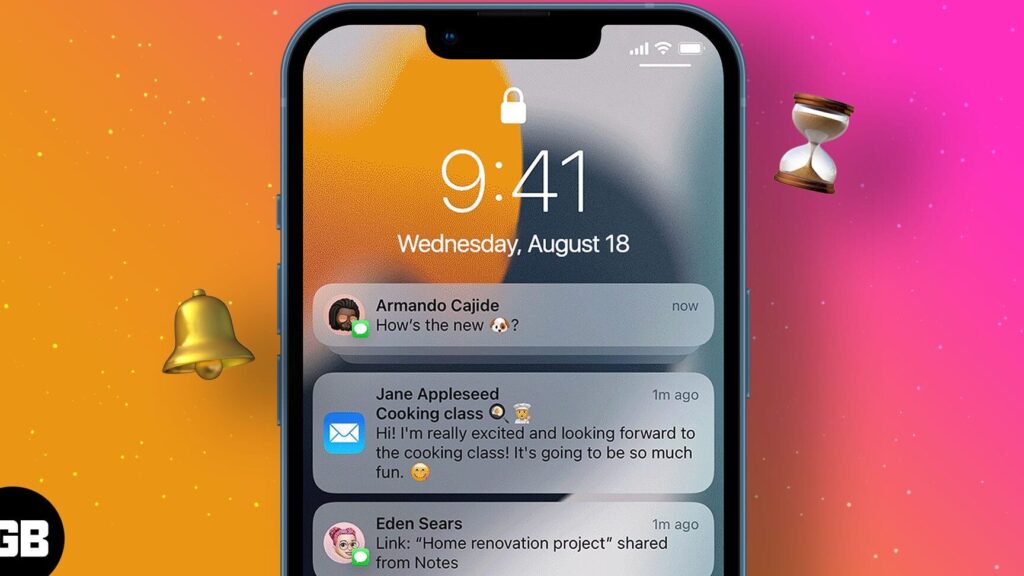
Troubleshooting Delayed WhatsApp Notifications: Immediate Solutions
If you're experiencing delayed WhatsApp notifications, it can be frustrating to miss out on timely messages. Here are some immediate solutions to address the issue where notifications don't arrive until you open the app:
1. Check Notification Settings: Ensure that WhatsApp has the necessary permissions to send notifications. Go to your phone's settings, find 'Apps & Notifications,' select WhatsApp, and make sure all notification options are turned on.
2. Restrict Battery Optimization: Some devices may delay notifications to save battery life. To prevent this, go to your phone's battery settings and look for 'Battery Optimization' or 'Power Saving Mode.' Find WhatsApp and set it to 'Don't Optimize' or 'Unrestricted.'
3. Update WhatsApp: Running an outdated version of the app can cause issues. Visit the App Store or Google Play Store and update WhatsApp to the latest version.
4. Clear Cache: Over time, cache data can become corrupted, leading to performance issues. Clearing the cache for WhatsApp can sometimes resolve notification delays. Go to your phone's settings, select 'Apps,' choose WhatsApp, and tap 'Clear Cache.'
5. Restart Your Device: A simple restart can fix many temporary glitches, including notification problems. Turn your device off and on again to refresh the system.
6. Check Network Connection: A stable internet connection is crucial for receiving notifications promptly. Ensure your device is connected to Wi-Fi or has a strong mobile data signal.
7. Disable Data Saver: If you have a data saver mode enabled, it might restrict background data usage, affecting notifications. Disable data saver mode or whitelist WhatsApp to allow unrestricted data access.
8. Reinstall WhatsApp: If all else fails, uninstalling and reinstalling WhatsApp can give you a fresh start. This can resolve underlying issues that might be causing the delayed notifications.
By following these steps, you should be able to resolve the problem with delayed WhatsApp notifications. Remember to back up your chats before reinstalling the app to avoid losing any important messages.
What are the common reasons for WhatsApp notifications not arriving until the app is opened on smartphones?
Common reasons for WhatsApp notifications not arriving until the app is opened include restricted background data, power-saving modes that limit app activity, incorrect notification settings, or an outdated app version. Additionally, issues with the device's operating system or network connectivity can also cause delayed notifications.
How can I troubleshoot and fix delayed WhatsApp notifications on my Android device?
To troubleshoot and fix delayed WhatsApp notifications on your Android device, follow these steps:
1. Check Internet Connection: Ensure you have a stable internet connection, as delays often occur due to connectivity issues.
2. Restart Your Device: Sometimes a simple restart can resolve notification delays.
3. Check Notification Settings: Go to WhatsApp > Settings > Notifications and make sure they are set correctly.
4. Battery Optimization: Go to your phone's settings and ensure WhatsApp is not optimized for battery usage, as this can delay notifications.
5. Update WhatsApp: Make sure you have the latest version of WhatsApp installed from the Google Play Store.
6. Clear Cache: Go to Settings > Apps > WhatsApp > Storage and clear the cache.
7. Check Do Not Disturb Mode: Ensure that Do Not Disturb mode is not enabled, as it can prevent notifications from appearing.
8. Background Data: Ensure WhatsApp has permission to use background data.
If none of these steps work, consider reinstalling WhatsApp, but remember to back up your chats first.
What steps should I take to ensure immediate delivery of WhatsApp notifications on my iPhone?
To ensure immediate delivery of WhatsApp notifications on your iPhone, follow these steps:
1. Go to Settings > Notifications > WhatsApp.
2. Enable Allow Notifications and select the alert styles you prefer.
3. Ensure that Do Not Disturb mode is turned off or set to allow WhatsApp notifications.
4. Open WhatsApp, go to Settings > Notifications, and make sure message and group notifications are set to On.
5. Check that your network connection (Wi-Fi or cellular data) is stable and active.
6. If the issue persists, try restarting your iPhone and updating both iOS and the WhatsApp app to the latest versions.

Mastering Your Digital Presence: Navigating WhatsApp Online Status Visibility and Privacy

Understanding the 'Busy' Call Status on WhatsApp: Navigating Call Availability on Popular Messaging Apps
Connecting Beyond Cell Networks: How to Make Landline Calls with WhatsApp's Voice Call Features
Disconnected Dialogues: Exploring the Etiquette and Implications of Call Behavior on WhatsApp and Other Messaging Apps
Jazz Up Your WhatsApp: A Step-by-Step Guide to Setting a GIF as Your Profile Picture
Understanding WhatsApp Call Alerts: Does It Ring When the Receiver's Phone is Off?
Go up
Deja una respuesta