

Troubleshooting Guide: How to Fix 'Authorization Failed' Error on IPTV Smarters Pro for Your Host

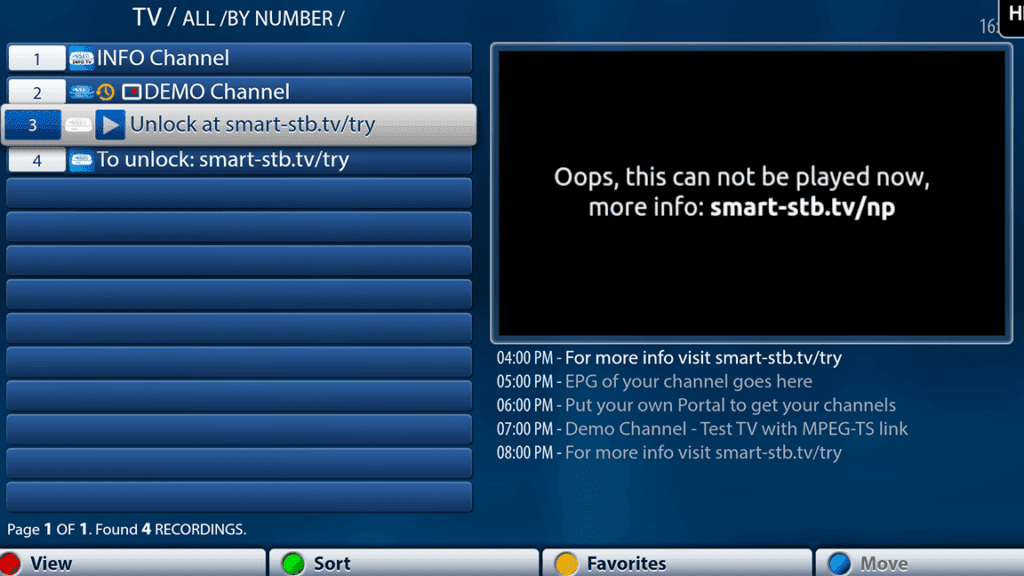
Troubleshooting Authorization Failed Errors in IPTV Smarters Pro
When dealing with Authorization Failed errors in IPTV Smarters Pro, it's essential to understand that these issues typically stem from incorrect login credentials, server problems, or connectivity issues. To troubleshoot this problem, follow these steps:
1. Check Your Credentials: Ensure that you have entered the correct username, password, and URL. It's easy to overlook a typo or case sensitivity. Re-enter your details carefully.
2. Verify Server Status: Sometimes the issue might be on the provider's end. Check if the IPTV service is operational by contacting your service provider or checking their status page if available.
3. Internet Connection: A stable internet connection is crucial for IPTV services. Verify that your device is connected to the internet and that the signal strength is sufficient.
4. Update IPTV Smarters Pro: An outdated app can cause compatibility issues. Make sure you have the latest version of IPTV Smarters Pro installed on your device.
5. Clear Cache: Over time, cache data can become corrupted, leading to errors. Clear the cache of the IPTV Smarters Pro app in your device settings.
6. VPN Services: If you're using a VPN, it could interfere with the authorization process. Try disabling the VPN to see if it resolves the issue.
7. Device Compatibility: Ensure that your device is compatible with IPTV Smarters Pro. Some older devices may not support the latest version of the app.
8. Reinstall the App: Uninstalling and then reinstalling IPTV Smarters Pro can sometimes resolve unexpected glitches.
9. Firewall or Antivirus: Check if your firewall or antivirus software is blocking the connection to the IPTV service. Adjust your settings to allow IPTV Smarters Pro to communicate through the firewall.
10. Contact Support: If none of the above solutions work, reach out to the customer support team of your IPTV service provider for further assistance.
By systematically going through these troubleshooting steps, you should be able to identify and resolve the Authorization Failed error in IPTV Smarters Pro. Remember that patience and careful attention to detail are key when resolving technical issues.
What are the common reasons for an authorization failure in IPTV Smarters Pro when trying to access a host?
Common reasons for an authorization failure in IPTV Smarters Pro include: incorrect login credentials (username and password), a problem with the subscription (expired or inactive), server downtime on the provider's side, or an issue with the app itself that may require an update or reinstallation. It's also possible that the user's IP might be blocked or there could be a network connectivity issue.
How can users troubleshoot and resolve authorization issues in IPTV Smarters Pro?
To troubleshoot and resolve authorization issues in IPTV Smarters Pro, users should:
1. Check Login Credentials: Ensure the username, password, and server URL are entered correctly.
2. Verify Subscription: Confirm that the IPTV service subscription is active and has not expired.
3. Update App: Make sure you're using the latest version of IPTV Smarters Pro.
4. Network Connection: Verify that your internet connection is stable and strong enough for streaming.
5. Contact Provider: If issues persist, reach out to your IPTV service provider to confirm there are no server-side problems or maintenance activities.
6. Reinstall App: Sometimes, uninstalling and reinstalling the app can resolve unexpected glitches.
Always handle your login information securely and never share it with unauthorized parties.
Are there any specific settings or configurations that need to be checked to prevent authorization failures in IPTV Smarters Pro?
To prevent authorization failures in IPTV Smarters Pro, ensure the following settings are correct:
1. Username and Password: Double-check that you've entered the correct credentials provided by your IPTV service provider.
2. URL: Verify the server URL is entered correctly without any typos.
3. Internet Connection: Ensure your device has a stable internet connection.
4. VPN Usage: If you're using a VPN, make sure it's not causing connectivity issues.
5. App Updates: Keep the app updated to the latest version to avoid compatibility issues.
If issues persist, contact your IPTV service provider to confirm there are no service outages or account problems.

Seamless Parking Payments: A Step-by-Step Guide to Using EasyPark

Unlocking the Power of IPTV: How to Stream Like a Pro with Chromecast

Unlocking Endless Entertainment: Choosing the Right IPTV Subscription Service

Step-by-Step Guide: How to Redeem Your Bimba y Lola Gift Card Online

Becoming a Digital TV Tycoon: The Ultimate Guide to Becoming a Successful IPTV Reseller

Smartwatch Payment Security: Essential Precautions to Keep Your Transactions Safe
Go up
Deja una respuesta