

Exploring Payment Options: Can You Use PayPal on Amazon?

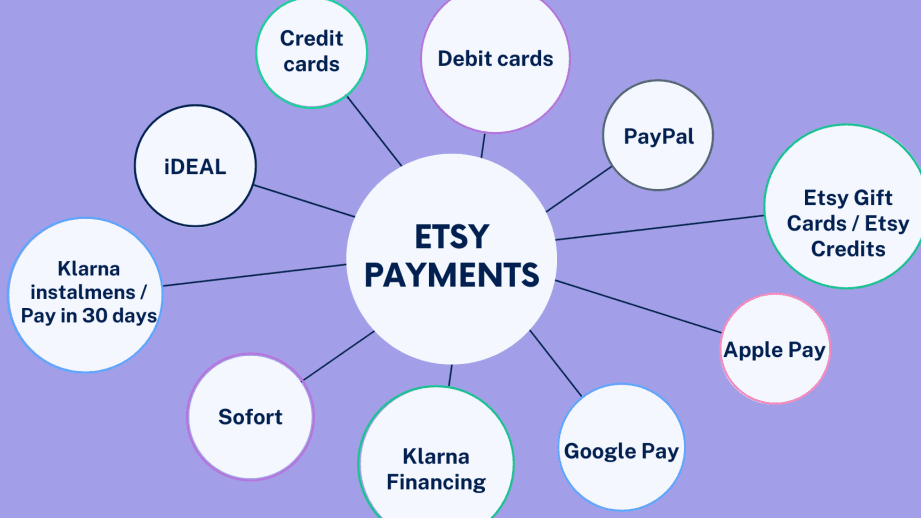
How to Use PayPal for Amazon Purchases: A Step-by-Step Guide
While Amazon does not directly accept PayPal payments, there are workarounds that allow you to use your PayPal account to buy products from Amazon. Here's a step-by-step guide on how to do it:
Step 1: Obtain a PayPal Cash Card
First, you need to get a PayPal Cash Card, which is a debit card linked to your PayPal balance. You can apply for this card through your PayPal account. Once approved, the card will be sent to you, and you can activate it following the instructions provided.
Step 2: Link Your PayPal Cash Card to Amazon
After receiving and activating your PayPal Cash Card, go to your Amazon account and navigate to the 'Your Account' section. Under 'Payment options,' click on 'Add a payment method.' Enter your PayPal Cash Card details as you would with any other debit or credit card.
Step 3: Set PayPal Cash Card as Your Default Payment Method
To make the checkout process smoother, you can set your PayPal Cash Card as your default payment method. This way, it will be automatically selected when you're making a purchase.
Step 4: Reload Your Amazon Gift Card Balance Using PayPal
Another method to use PayPal for Amazon purchases is by purchasing Amazon gift cards. You can buy these from authorized retailers online that accept PayPal. Once you have your Amazon gift card, go to 'Your Account' on Amazon and select 'Gift cards.' Click on 'Redeem a Gift Card' and enter the gift card's code. The balance will be added to your Amazon account and can be used for future purchases.
Step 5: Use PayPal on Amazon via Third-Party Merchants
Some third-party merchants on Amazon may offer PayPal as a payment option directly. However, this is less common and not officially supported by Amazon. If you find a merchant that accepts PayPal, you can proceed with the purchase using your PayPal account.
Step 6: Keep an Eye on PayPal Promotions
Occasionally, PayPal may offer special promotions that allow you to use reward points or cashback to fund Amazon purchases. Keep an eye on any offers within your PayPal account or through promotional emails.
By following these steps, you can effectively bridge the gap between your PayPal account and your Amazon purchases, even though Amazon does not directly accept PayPal as a form of payment.
Can you use PayPal directly to make payments on Amazon?
No, Amazon does not accept PayPal as a direct payment method. However, you can use PayPal Cash Card, PayPal Business Debit Mastercard, or transfer funds from PayPal to your bank account to make purchases on Amazon.
Are there any workarounds for using PayPal funds to shop on Amazon?
Currently, Amazon does not accept PayPal directly. However, a workaround is to purchase Amazon gift cards using your PayPal funds from authorized retailers or websites that allow payment via PayPal. Then, you can use these gift cards to shop on Amazon. Another option is to apply for a PayPal Cash Card, which is a debit card linked to your PayPal balance, and use it as a payment method on Amazon.
What are the steps to link a PayPal account to Amazon for payment processing?
As of my last update in April 2023, Amazon does not directly accept PayPal for payment processing. However, you can use a PayPal Cash Card, which is a Mastercard debit card, or a PayPal Business Debit Mastercard to make purchases on Amazon. Here are the steps:
1. Obtain a PayPal Cash Card or PayPal Business Debit Mastercard.
2. Link the card to your PayPal account and ensure it has funds or is connected to your bank account.
3. Go to the Payment options in your Amazon account settings.
4. Click on Add a payment method.
5. Enter your PayPal card details as you would with any other credit/debit card.
6. Once added, select the PayPal card as your payment method during checkout.
Remember, this is a workaround since Amazon doesn't allow linking PayPal directly as a payment option.

Cross-Border Gifting: How to Transfer Your Amazon Gift Card for International Use

Unlocking Entertainment: How to Stream with an Amazon Fire Stick Without an Amazon Account

Fixing the Flicker: A Step-by-Step Guide to Troubleshooting Your Echo Spot's Screen Issues
Banishing the Green: A Step-by-Step Guide to Troubleshooting and Fixing Display Issues on Your Fire TV

Dealing with Disappointment: Navigating Amazon's 'Your Package May Be Lost' Alert and Delivery Issues
Stream Your Beats: A Step-by-Step Guide to Playing Amazon Music on Apple HomePod
Go up
Deja una respuesta