

Seamless Integration: A Step-by-Step Guide to Connecting Your iPhone to the New HomePod 2

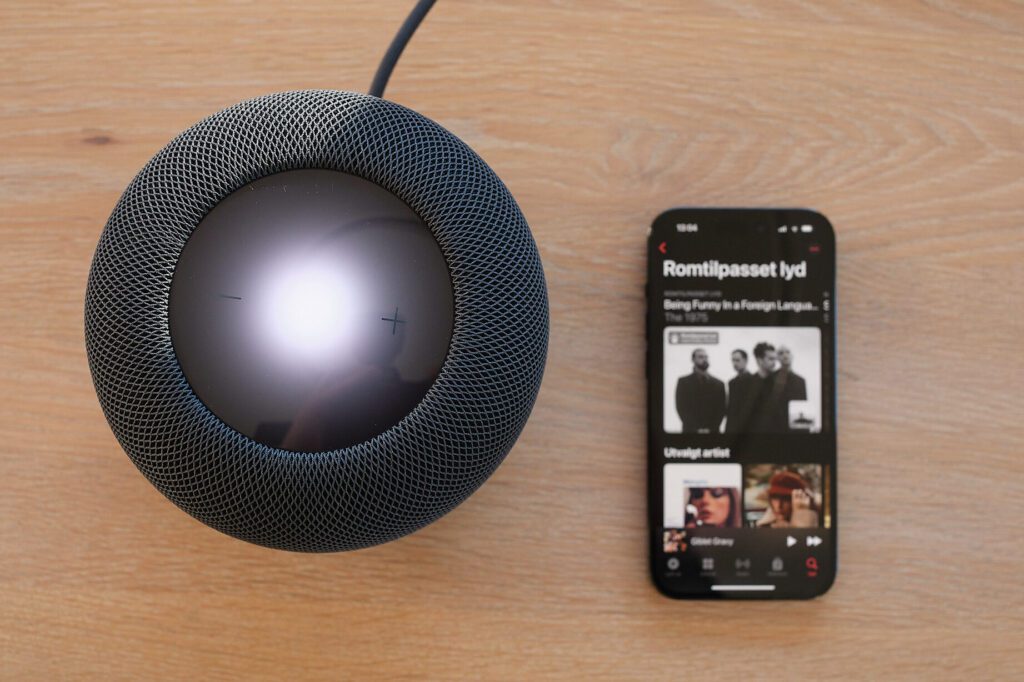
How to Connect Your iPhone to Your HomePod 2: A Simple Guide
Have you ever wondered what it would be like to have your favorite tunes fill the room with just a tap on your iPhone? Imagine controlling your music experience with the ease of a voice command or a simple touch. Well, if you've got an iPhone and a HomePod 2, that seamless audio magic is just a few steps away. But how exactly do you unlock this harmonious connection? Keep reading, because we're about to dive into the surprisingly simple world of syncing your devices for an auditory delight.
Understanding the Basics: What You Need
Before we get into the nitty-gritty, let's make sure you have everything you need:
- An iPhone running the latest version of iOS
- A HomePod 2 ready to amplify your audio experience
- A Wi-Fi network that both devices can connect to
Got all that? Great! Now, let's move on to the actual steps.
Step-by-Step: Connecting Your iPhone to Your HomePod 2
Step 1: Power Up and Position Your HomePod 2
First things first, plug in your HomePod 2 to a power source and place it in the desired location within your home. Make sure it's in a spot where Wi-Fi signal is strong to ensure a stable connection.
Step 2: Unlock Your iPhone and Get Ready
Unlock your iPhone and ensure that Wi-Fi and Bluetooth are turned on. This is crucial as these are the primary ways your iPhone will communicate with your HomePod 2.
Step 3: Initiate the Connection
Bring your iPhone close to your HomePod 2. You should see a setup animation appear on your iPhone. If you don't see the setup prompt, lock your iPhone, unlock it again, and hold it close to the HomePod 2.
Step 4: Follow On-Screen Instructions
Once the setup animation appears, tap 'Set Up' on your iPhone, and follow the on-screen instructions. You'll be asked which room your HomePod 2 is in, and you may also enable personal requests to allow your HomePod 2 to send messages, add reminders, and more when your iPhone is on the same network.
Step 5: Finalize the Setup
After you've followed the on-screen prompts, your iPhone will transfer settings to your HomePod 2, such as your Apple ID, Apple Music, Siri, and Wi-Fi settings. This process might take a minute or two, so be patient.
Step 6: Start Using Your HomePod 2
Once the setup is complete, you can start using your HomePod 2 immediately. Try saying "Hey Siri, play some music" to test out the connection. Your HomePod 2 should respond and begin playing music from your Apple Music library or the streaming service you've set up.
Troubleshooting Tips
If you run into any issues while trying to connect your iPhone to your HomePod 2, here are a few troubleshooting tips:
- Ensure both devices are on the same Wi-Fi network.
- Restart both your iPhone and HomePod 2.
- Update your iPhone to the latest version of iOS.
- Reset your HomePod 2 by unplugging it for 5 seconds and plugging it back in.
Maximizing Your HomePod 2 Experience
Now that your iPhone and HomePod 2 are connected, you can explore a world of features. Ask Siri to set alarms, control smart home devices, or even answer questions about the weather or news. The possibilities are vast, and they all start with a simple connection.
Enjoy Your Audio Adventure
Connecting your iPhone to your HomePod 2 is just the beginning of a richer, more convenient audio experience at home. With this guide, you're well-equipped to enjoy all the benefits of your smart devices working in harmony. So go ahead, ask Siri to play your favorite playlist, and bask in the brilliance of your new smart home soundscape.
And remember, this is just one of the many incredible things you can do with your Apple devices. Stay tuned for more tips and tricks that will help you make the most out of your tech-savvy lifestyle!
Step-by-Step Guide to Pairing Your iPhone with HomePod 2
Pairing your iPhone with the HomePod 2 is a straightforward process that allows you to enjoy music, control smart home devices, and access Siri with enhanced audio quality. Here's a step-by-step guide to help you connect your devices seamlessly.
Step 1: Check Compatibility and Requirements
Before you begin, ensure that your iPhone is running the latest version of iOS. Your HomePod 2 should also be powered on and in close proximity to your iPhone.
Step 2: Enable Wi-Fi and Bluetooth
On your iPhone, go to Settings and make sure that both Wi-Fi and Bluetooth are turned on. Your iPhone needs to be connected to the same Wi-Fi network as your HomePod 2 for the pairing to work.
Step 3: Initiate the Pairing Process
Bring your iPhone close to the HomePod 2. After a few seconds, an animation should appear on your iPhone's screen indicating that it has detected the HomePod 2.
Step 4: Set Up with the Home App
Tap on the animation to open the Home app setup. If prompted, enter your Apple ID password. Follow the on-screen instructions to choose the room where your HomePod 2 is located and configure its settings.
Step 5: Transfer Settings
Your iPhone will ask if you want to transfer your Apple Music, Siri, and Wi-Fi settings to the HomePod 2. Confirm to proceed with the transfer. This will allow your HomePod 2 to use your existing preferences.
Step 6: Wait for Completion
The setup process will take a few minutes to complete. During this time, your iPhone will pair with the HomePod 2 and sync the necessary data.
Step 7: Finalize Setup
Once the setup is complete, you'll receive a confirmation on your iPhone. You can now ask Siri to play music, control smart home accessories, or provide information through your HomePod 2.
Remember, if you encounter any issues during the pairing process, you can consult Apple's support documentation or restart both your iPhone and HomePod 2 before attempting to pair them again.
Best HomePod 2 & Mini SETTING - Best Sound Experience.
What are the steps to pair my iPhone with a new HomePod 2?
To pair your iPhone with a new HomePod 2, follow these simple steps:
1. Ensure that your iPhone is updated to the latest version of iOS.
2. Turn on Bluetooth and Wi-Fi on your iPhone, and make sure it's connected to the same Wi-Fi network as the HomePod will be.
3. Plug in your HomePod to power and wait for a sound indicating it's ready to be set up.
4. Unlock your iPhone and hold it close to the HomePod.
5. A setup window should appear on your iPhone; tap "Set Up".
6. Follow the on-screen instructions to choose settings for location services, Siri, and personal requests.
7. Transfer settings by tapping "Transfer Settings".
Your iPhone should now be paired with your new HomePod 2.
Can I use AirPlay to connect my iPhone to my HomePod 2, and how?
Yes, you can use AirPlay to connect your iPhone to your HomePod 2. Simply ensure both devices are on the same Wi-Fi network, then open the audio content on your iPhone, tap the AirPlay icon, and select your HomePod 2 from the list of available devices.
How do I troubleshoot connectivity issues between my iPhone and HomePod 2?
To troubleshoot connectivity issues between your iPhone and HomePod 2, follow these steps:
1. Ensure both devices are on the same Wi-Fi network and that you're signed in to iCloud with the same Apple ID.
2. Restart your HomePod by unplugging it from power, waiting a few seconds, and plugging it back in.
3. Restart your iPhone by turning it off and then back on.
4. Check for any software updates for both your iPhone and HomePod in their respective settings.
5. If issues persist, reset your HomePod to factory settings by pressing the top of the HomePod and holding it down until you hear three beeps.
If the problem continues after these steps, contact Apple Support for further assistance.

Tap to Pay: Mastering Apple Watch Payments on the Go

Mastering Mobile Payments: A Step-by-Step Guide to Using Apple Pay on Your iPhone

Apple Warranty Duration: Everything You Need to Know

Exploring the X Factor: A Comprehensive Review of the Apple TV Experience

Top Tips for Mastering Your Apple Apps: Enhance Your iOS Experience

Exploring the Variants: A Comprehensive Guide to Apple Watch Series 7 Models
Go up
Deja una respuesta