

Seamless Integration: A Step-by-Step Guide to Connecting Your iPod Touch to HomePod

How to Connect Your iPod Touch to HomePod: A Simple Guide
Have you ever wondered what it would be like to fill your room with your favorite tunes from your iPod Touch, using the powerful sound of a HomePod? Well, wonder no more! In this article, we're going to explore the surprisingly simple process of connecting your iPod Touch to a HomePod. So, grab your iPod, and let's get started on this musical adventure!
Understanding the Basics
Before we dive into the steps, let's make sure we understand what we're working with. The iPod Touch is a versatile device that not only stores music but also allows you to access various streaming services. On the other hand, the HomePod is Apple's answer to smart speakers, offering incredible sound quality and the intelligence of Siri.
Now, imagine combining these two. You get the portability and convenience of the iPod Touch with the immersive audio experience of the HomePod. Sounds exciting, right? Let's see how it's done.
Step-by-Step Guide: How to Connect the iPod Touch to HomePod
Connecting your iPod Touch to a HomePod is a breeze, and here's how you can do it:
Ensure Compatibility and Update Software
First things first, make sure your iPod Touch is running the latest version of iOS. To check for updates, go to Settings > General > Software Update. If there's an update available, download and install it. This ensures that your devices will work together seamlessly.
Connect to Wi-Fi and Enable Bluetooth
Your iPod Touch and HomePod must be connected to the same Wi-Fi network. Also, turn on Bluetooth on your iPod Touch by going to Settings > Bluetooth and toggling it on.
Set Up Your HomePod
If you haven't already set up your HomePod, hold your iPod Touch close to the HomePod and follow the on-screen instructions. This process includes assigning the HomePod to a room in your home and enabling personal requests if desired.
Use AirPlay to Connect
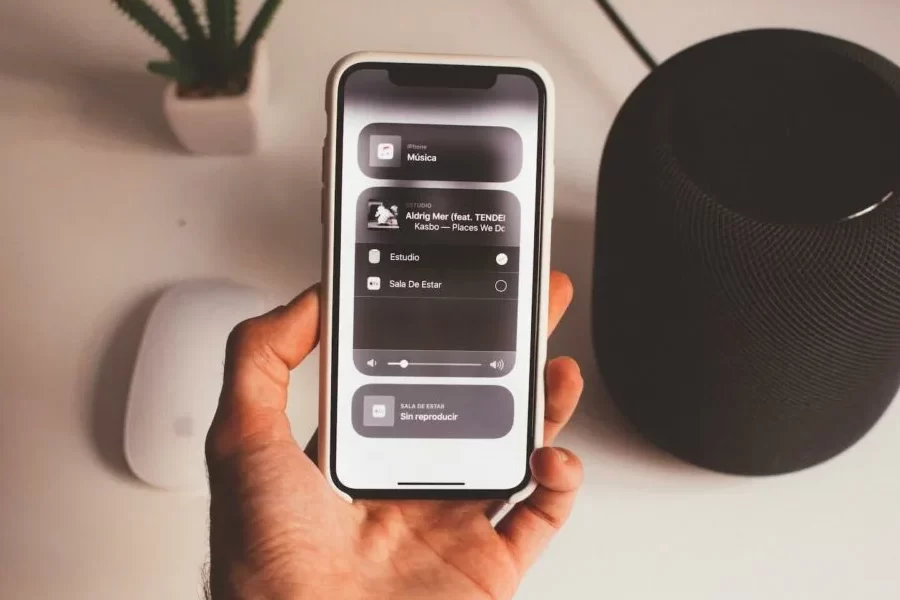
With both devices ready, swipe down from the top-right corner of your iPod Touch to access the Control Center. Tap the AirPlay icon (it looks like a triangle with circles above it). From the list of available devices, select your HomePod. Voilà! Your music should now play through the HomePod speaker.
Troubleshooting Common Issues
If you encounter any hiccups while trying to connect, don't fret. Here are some quick fixes:
- Ensure both devices are on the same Wi-Fi network.
- Restart both your iPod Touch and HomePod.
- Check for software updates on both devices.
- Reset your HomePod by unplugging it for 10 seconds and plugging it back in.
Maximizing Your Listening Experience
Now that you've connected your iPod Touch to your HomePod, you might be wondering how to get the most out of this setup. Here are a few tips:
- Use Siri to control playback with voice commands.
- Create playlists on your iPod Touch that you can easily access through your HomePod.
- Explore different settings in the Home app to customize your listening experience.
Enjoy Your Music Like Never Before
By following these straightforward steps, you can effortlessly connect your iPod Touch to your HomePod and enjoy a superior listening experience. Whether you're looking to set the mood for a party or simply relax with some soothing melodies, this dynamic duo has got you covered.
Remember, technology is meant to enhance our lives, and by utilizing the capabilities of both the iPod Touch and HomePod, you're doing just that. So go ahead, play your favorite album, and let the good times roll!
And if you're curious about more ways to integrate Apple products into your daily life, stay tuned. We've got plenty of tips and tricks up our sleeve that we can't wait to share with you!
Step-by-Step Guide to Pairing Your iPod Touch with HomePod
To pair your iPod Touch with a HomePod, follow these steps:
1. Ensure that your iPod Touch is updated to the latest version of iOS. To check for updates, go to Settings > General > Software Update.
2. Connect your iPod Touch to a Wi-Fi network. The HomePod must be on the same network to establish a connection.
3. Turn on Bluetooth on your iPod Touch by going to Settings > Bluetooth and toggling it on.
4. Plug in your HomePod to power and wait for it to boot up. If this is the first time you're setting up the HomePod, wait for the white spinning light to appear on top.
5. Unlock your iPod Touch and hold it near the HomePod. You should see an animation appear on your iPod Touch screen indicating that it has detected the HomePod.
6. A setup screen will appear on your iPod Touch. Tap Set Up to continue.
7. Choose the room where your HomePod is located. This helps with identifying the HomePod in the Home app and when using Siri.
8. When prompted, enable Personal Requests if you want to use your HomePod to send and read messages, add reminders, and create notes when your iPod Touch is connected to the same Wi-Fi network.
9. The setup process may ask you to transfer settings from your iPod Touch to your HomePod. This includes your Apple ID, Apple Music, Siri, and Wi-Fi settings.
10. Wait for the setup to complete. Your iPod Touch will play a tone through the HomePod, confirming that the pairing is successful.
11. Once paired, you can control music playback on your HomePod using your iPod Touch via the Control Center, the Music app, or by asking Siri.
Remember, if you have any issues during the setup process, ensure both devices are close to each other and that there are no obstructions between them. If problems persist, consider restarting both your iPod Touch and HomePod before attempting the pairing process again.
How To Connect Apple Home Pod To Tv
What are the steps to connect an iPod Touch to a HomePod using AirPlay?
To connect an iPod Touch to a HomePod using AirPlay, follow these steps:
1. Ensure your iPod Touch and HomePod are connected to the same Wi-Fi network.
2. Unlock your iPod Touch and open the Control Center by swiping down from the top-right corner of the screen (or up from the bottom if it's an older model).
3. Tap the AirPlay icon (looks like a triangle with circles above it) in the audio playback controls.
4. From the list of available devices, select your HomePod to establish the connection.
5. Once connected, any audio played on your iPod Touch will stream to your HomePod.
Can you directly connect an iPod Touch to a HomePod without using Wi-Fi?
No, you cannot directly connect an iPod Touch to a HomePod without using Wi-Fi. The HomePod requires a Wi-Fi connection for setup and communication with iOS devices.
How do you troubleshoot connectivity issues when linking an iPod Touch to a HomePod?
To troubleshoot connectivity issues when linking an iPod Touch to a HomePod, follow these steps:
1. Ensure Compatibility: Verify that your iPod Touch runs on the latest iOS version that's compatible with HomePod.
2. Check Wi-Fi Connection: Both devices must be connected to the same Wi-Fi network.
3. Restart Devices: Restart both the iPod Touch and the HomePod to refresh their connections.
4. Update Software: Make sure both devices have the latest software updates installed.
5. Reset HomePod: If the issue persists, reset the HomePod to its factory settings.
6. Contact Support: If none of the above solutions work, contact Apple Support for further assistance.

Tap to Pay: Mastering Apple Watch Payments on the Go

Mastering Mobile Payments: A Step-by-Step Guide to Using Apple Pay on Your iPhone

Apple Warranty Duration: Everything You Need to Know

Exploring the X Factor: A Comprehensive Review of the Apple TV Experience

Top Tips for Mastering Your Apple Apps: Enhance Your iOS Experience

Exploring the Variants: A Comprehensive Guide to Apple Watch Series 7 Models
Go up
Deja una respuesta