

Step-by-Step Guide: Extracting Audio from Video Files into MP3 Format

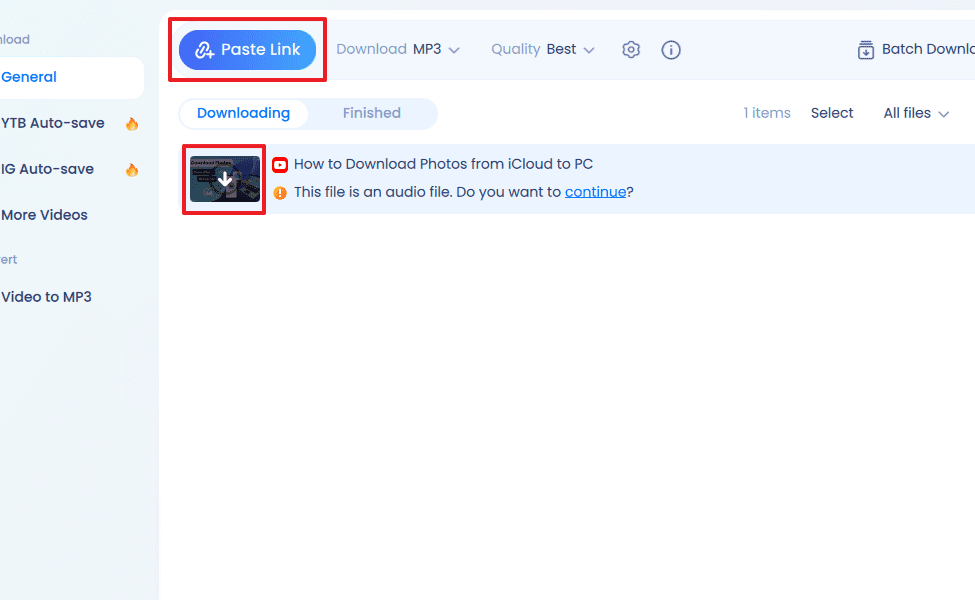
Step-by-Step Guide to Converting Video Files to MP3 Audio
Converting video files to MP3 audio is a common task for those who want to extract the sound from a video clip, whether it's a music video, a lecture, or any other type of video content. Here's a step-by-step guide on how to accomplish this using a free and widely available software tool.
Step 1: Download and Install a Video Converter
First, you need to download a reliable video converter that supports both video and audio formats, including MP3. One popular choice is FFmpeg, which is an open-source command-line tool. Another user-friendly option is VLC Media Player, which offers a graphical interface. For this guide, we'll use VLC Media Player as an example.
Step 2: Open Your Video in VLC Media Player
Once VLC is installed, open the program. Click on the Media menu and select Convert/Save.... In the Open Media window, click on the Add... button to browse and select the video file you wish to convert.
Step 3: Choose the Convert Option
After adding your video file, click on the Convert/Save button at the bottom of the Open Media window. This will bring up the Convert window.
Step 4: Select Audio - MP3 Format
In the Convert window, look for the Profile dropdown menu. From there, select Audio - MP3. This tells VLC to convert the video into an MP3 audio file.
Step 5: Set Destination File
Before starting the conversion, you need to specify where the new MP3 file will be saved. Click on the Browse button next to the Destination file field. Choose a location on your computer and enter a name for your MP3 file, making sure to include the .mp3 extension at the end of the file name.
Step 6: Start the Conversion Process
With the destination set, click on the Start button to begin converting the video to MP3. The length of time this takes will depend on the size of the video file and the performance of your computer.
Step 7: Locate Your MP3 File
Once the conversion is complete, navigate to the folder where you saved the MP3 file. You should find your new audio file there, ready to be played with any standard media player that supports MP3 format.
By following these steps, you can easily extract audio from any video and save it as an MP3 file, allowing you to listen to it on various devices or share it with others without the need for video playback capabilities.
What software can I use to extract audio from a video file and convert it to MP3 format?
You can use Audacity to extract audio from a video file and convert it to MP3 format. Additionally, VLC Media Player also offers the feature to convert video files to audio formats like MP3. Both are free and widely-used software options for this purpose.
Are there any free online tools available for converting video audio to MP3 without downloading software?
Yes, there are several free online tools available for converting video audio to MP3 without the need to download software. Websites like Online Audio Converter, Zamzar, and Convertio allow users to upload video files and convert them to MP3 format directly in their web browsers. These services are typically easy to use and do not require registration.
How can I extract high-quality MP3 audio from a video file using a command-line interface like FFmpeg?
To extract high-quality MP3 audio from a video file using FFmpeg, you can use the following command:
```bash
ffmpeg -i input_video.mp4 -q:a 0 -map a output_audio.mp3
```
Here, `-i` specifies the input video file. The `-q:a 0` option sets the highest quality for the MP3, and `-map a` tells FFmpeg to extract only the audio. `output_audio.mp3` is the name of the resulting MP3 file.

Bypassing Restrictions: A Step-by-Step Guide to Downloading Images from Right-Click Disabled Websites

Revolutionize Your Meeting Notes: Top AI Tools for Transcribing Zoom and Teams Meetings

Mastering WhatsApp Group Polls: Your Ultimate Guide to Engaging Chats and Decision-Making

Unlocking Free Entertainment: Exploring the World of IPTV Romania Gratis

Mastering IPTV: A Comprehensive Guide to Editing Your IPTV Experience

Building an E-commerce Website: A Step-by-Step Guide to Integrating a Payment System
Go up
Deja una respuesta