

Seamless Transactions on Your Wrist: How to Make Payments with Your Mi Band 6

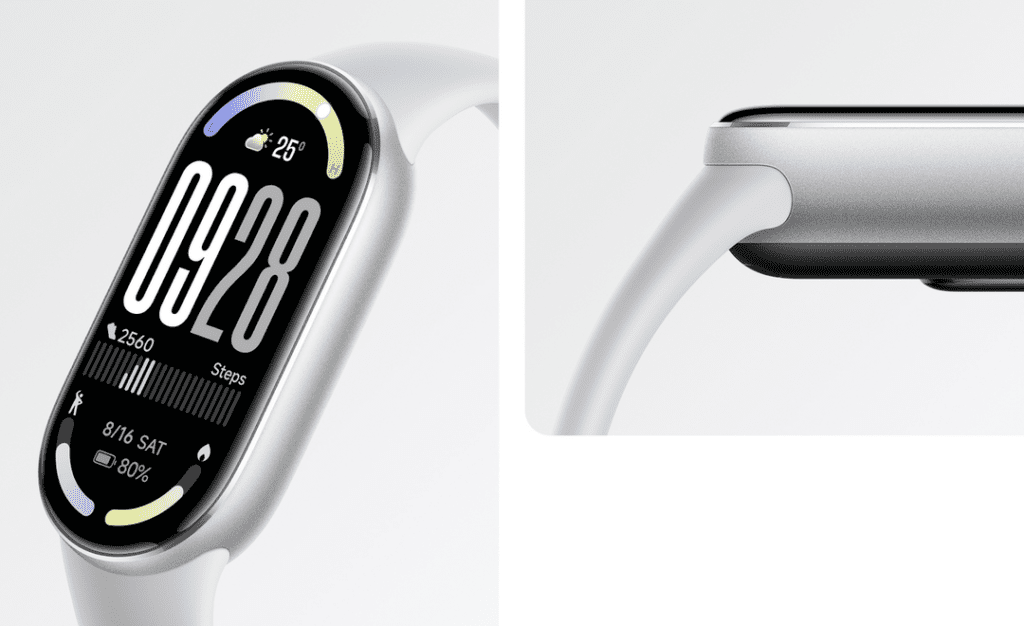
How to Set Up and Use Payment Features on Your Mi Band 6
The Mi Band 6, a popular fitness tracker by Xiaomi, offers a convenient feature for making contactless payments. To set up and use the payment features on your Mi Band 6, follow these steps:
1. Ensure Compatibility: Before you begin, make sure that your Mi Band 6 supports NFC (Near Field Communication) as only the NFC variant can be used for payments. Also, check if your bank or payment service is compatible with the Mi Band's payment system.
2. Update Firmware: Keep your Mi Band 6 updated to the latest firmware version. This can be done through the Mi Fit or Zepp Life app on your smartphone, which is necessary for the payment feature to work correctly.
3. Install Mi Wallet App: Download and install the Mi Wallet app on your smartphone. This app will allow you to add and manage your credit or debit cards for use with the Mi Band 6.
4. Add Payment Card: Open the Mi Wallet app and follow the instructions to add your payment card. You may need to verify your card details with your bank during this process.
5. Sync with Mi Band 6: Once your card is added and verified, sync the details with your Mi Band 6 through the Mi Wallet app. Ensure that your band is connected to your phone via Bluetooth during this step.
6. Set Up a PIN: For security purposes, you'll be prompted to set up a PIN on your Mi Band 6. This PIN will be required to authorize payments and should be kept confidential.
7. Making Payments: To make a payment, simply wake your Mi Band 6 by lifting your wrist or tapping the screen. Then, enter your PIN when prompted and hold the band close to the NFC-enabled POS (Point of Sale) terminal until you see a confirmation of the payment on the band's display.
8. Transaction Limits: Be aware that there might be transaction limits imposed either by the Mi Wallet app, your bank, or the payment terminal itself.
9. Monitor Transactions: Keep track of your payments and monitor your transaction history through the Mi Wallet app to ensure all charges are accurate.
By following these steps, you can easily set up and use the payment features on your Mi Band 6 to make quick and secure transactions without the need for pulling out your wallet or smartphone.
How do I set up payment functionality on my Mi Band 6?
To set up payment functionality on your Mi Band 6, you need to use the NFC version of the band and ensure that it supports your region. Follow these steps:
1. Pair your Mi Band 6 with your smartphone via the Zepp Life (formerly Mi Fit) app.
2. Go to the Profile section in the app, select your device, and tap on Add accounts under the Lab features.
3. Choose the bank card you want to add from the list of supported cards or follow the instructions to add a new one.
4. Follow the on-screen instructions to complete the setup, which may include verifying your card details and setting a PIN for payments.
Please note that payment services and supported banks/cards may vary by region. Always ensure that your device's firmware is up-to-date to access the latest features and compatibility.
What payment apps are compatible with the Mi Band 6 for contactless payments?
The Mi Band 6 supports contactless payments through NFC (Near Field Communication) in regions where this feature is available. However, compatibility with payment apps can vary by region. Generally, it works with Mastercard and Visa for the linked bank cards, and may support local payment systems like Alipay in China. Users should check with their local providers for specific compatible payment apps.
Are there any security features to protect my payment information on the Mi Band 6?
Yes, the Mi Band 6 includes several security features to protect your payment information. It uses encryption to safeguard data transmission and stores payment details in a secure environment on the device. Additionally, it may require authentication (such as a PIN or password) before allowing payment transactions.

How Much Does It Cost to Build an App? Everything You Need to Know

How Much Does It Cost to Create an App in Euros? Everything You Need to Know

How Much Does It Cost to Create an App? Everything You Need to Know

Troubleshooting Tips: How to Fix Geometry Dash Not Opening on Your iPhone

Unveiling the Digital Veil: Expert Tips to Detect When Someone is Using Their Phone

Stuck in Neutral: A Step-by-Step Guide to Fixing Update Glitches in the My BMW App
Go up
Deja una respuesta