

Troubleshooting Guide: How to Fix the 'WiFi Connected But No Internet' Issue on Windows Devices

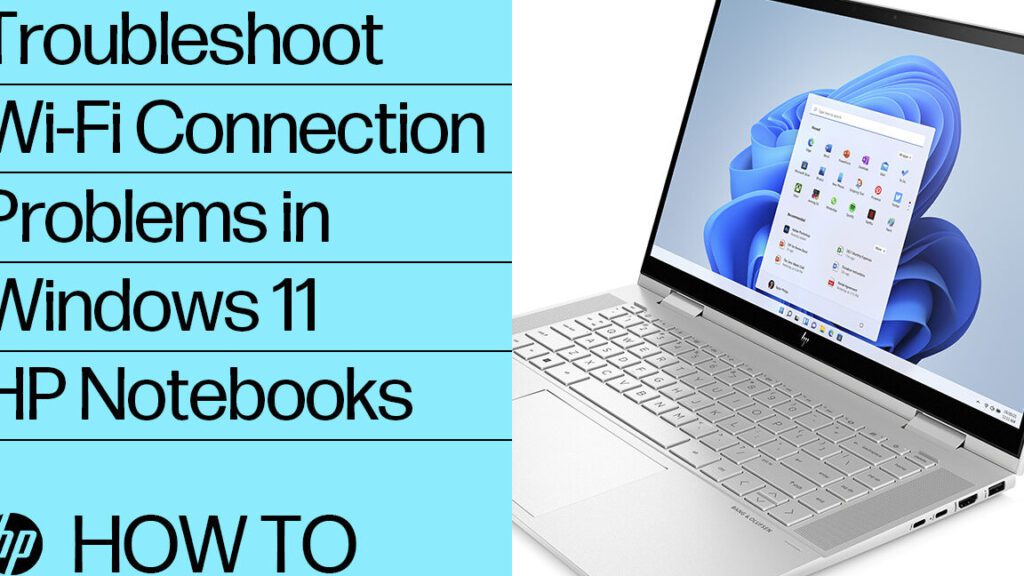
Troubleshooting Steps to Resolve 'Connected to WiFi but No Internet' Issue on Windows Devices
When you encounter the frustrating situation where your device is connected to WiFi but there's no internet access, there are several troubleshooting steps you can take to resolve the issue on Windows devices.
First, try the basic step of restarting your modem and router. This can often resolve temporary connectivity issues. Simply unplug both devices, wait for about a minute, and then plug them back in.
If that doesn't work, use the Windows Network Troubleshooter. Navigate to Settings > Network & Internet > Status. Click on 'Network troubleshooter' and follow the prompts. This built-in tool can diagnose and fix common network problems.
Another step is to check your IP address settings. Ensure that your computer is set to obtain an IP address automatically. Go to Control Panel > Network and Sharing Center > Change adapter settings. Right-click on your WiFi network, select Properties, and then scroll down to Internet Protocol Version 4 (TCP/IPv4). Click on it and ensure that both IP and DNS server addresses are set to automatic.
Sometimes, the issue might be due to outdated or corrupted network drivers. To address this, update your network adapter drivers. Go to Device Manager, expand the Network adapters section, right-click on your WiFi adapter, and select Update driver.
If updating doesn't help, you might need to uninstall and reinstall the network adapter. Still in Device Manager, right-click on the adapter and choose Uninstall device. Then, restart your computer to allow Windows to reinstall the driver automatically.
Flush your DNS cache by opening Command Prompt as an administrator and typing the command `ipconfig /flushdns`. This will clear any IP addresses and DNS records from your cache which could potentially be causing the problem.
Check if your firewall or antivirus software is blocking the connection. Temporarily disable these programs to see if they are causing the issue. If the internet works after disabling them, you'll need to create an exception for your browser or adjust the settings.
Lastly, if none of the above steps work, you may want to reset your network settings. Go to Settings > Network & Internet > Status and click on 'Network reset'. Be aware that this will remove all network adapters and set everything back to default settings. After resetting, you'll need to reconnect to your WiFi network.
What steps can I take to diagnose and fix the issue when my WiFi shows as connected but there is no internet access on a Windows computer?
To diagnose and fix the issue when your WiFi shows as connected but there is no internet access on a Windows computer, follow these steps:
1. Restart your modem and router: Unplug them for 30 seconds and then plug them back in.
2. Run the Network Troubleshooter: Go to Settings > Update & Security > Troubleshoot > Internet Connections.
3. Check your IP address settings: Ensure your computer is set to obtain an IP address automatically.
4. Flush DNS and reset TCP/IP: Open Command Prompt and type `ipconfig /flushdns` followed by `netsh int ip reset`.
5. Update Network Drivers: Go to Device Manager, find your network device, right-click and select "Update driver".
6. Disable Firewall temporarily: To rule out firewall issues, disable it briefly to see if connectivity is restored.
7. Contact your ISP: If none of the above works, there might be an outage or issue on your Internet Service Provider's end.
How can I update or reinstall network drivers to resolve connectivity issues where WiFi is connected but there is no internet on Windows?
To update or reinstall network drivers on Windows to fix connectivity issues where WiFi is connected but there is no internet, follow these steps:
1. Press Windows Key + X and select Device Manager.
2. Expand the Network adapters section.
3. Right-click on your wireless network adapter and select Update driver.
4. Choose Search automatically for updated driver software to update, or Browse my computer for driver software to reinstall from a specific location.
5. If updating doesn't work, go back, right-click the adapter again, and select Uninstall device.
6. After uninstalling, click Action at the top of Device Manager and select Scan for hardware changes to reinstall the driver.
If you still experience issues, downloading the latest driver from the manufacturer's website and installing it manually may be necessary. Remember to restart your computer after updating or reinstalling drivers to ensure changes take effect.
What are the common reasons for a Windows PC to display a 'WiFi connected but no internet' error, and how can I troubleshoot them?
Common reasons for a 'WiFi connected but no internet' error include:
- Router issues: Restart your router to refresh the connection.
- ISP downtime: Check if your Internet Service Provider is having outages.
- IP address conflict: Renew your IP address by running the command `ipconfig /release` followed by `ipconfig /renew` in Command Prompt.
- DNS problems: Change your DNS server settings to a public DNS like Google's (8.8.8.8 and 8.8.4.4).
- Outdated network drivers: Update your network adapter drivers through Device Manager.
- Firewall/Antivirus interference: Temporarily disable your firewall or antivirus to see if it's blocking the connection.
Troubleshooting steps involve restarting devices, checking service status, renewing IP configurations, changing DNS servers, updating drivers, and assessing security software.

Unlocking the Potential of IPTV: How to Use an IPTV Checker for Optimal Streaming Experience

Unlocking a World of Entertainment: How GitHub is Powering IPTV with Over 8000 Channels

Unlocking the Potential of Net IPTV: The Future of Streaming Technology

Unlocking the Future of Television: A Deep Dive into IPTV Development

Troubleshooting Guide: How to Fix the 'Failed to Authorize' Error in IPTV Smarters

Unlocking Free Entertainment: A Guide to Free IPTV Servers
Go up
Deja una respuesta