

Secure Your Files: A Step-by-Step Guide to Password Protecting a Folder in Windows Without Additional Software

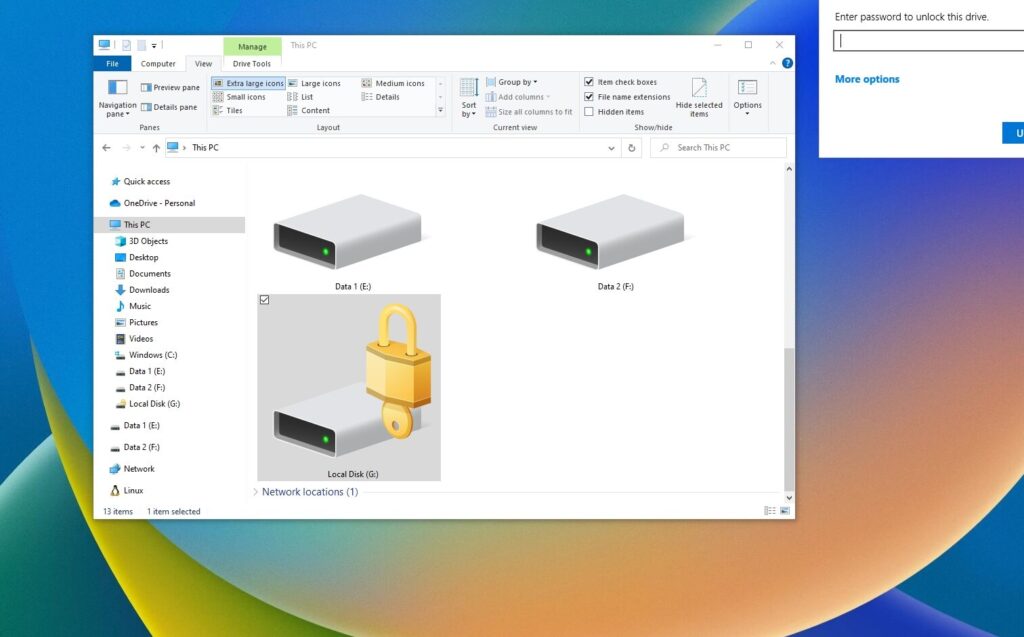
Step-by-Step Guide to Password Protect a Folder in Windows Using Built-in Features
Protecting sensitive information on your computer is crucial, and one way to secure your data is by password protecting a folder in Windows. You can do this without any third-party software by using the built-in features of Windows. Here's a step-by-step guide to help you through the process:
1. First, locate the folder you want to protect. Right-click on it and select 'Properties'.
2. In the Properties window, navigate to the 'Advanced...' button found within the 'General' tab.
3. Once the Advanced Attributes dialog opens, check the option to 'Encrypt contents to secure data'. Click 'OK' to proceed.
4. You'll be taken back to the Properties window. Here, click 'Apply'.
5. A new window will appear asking if you want to encrypt the folder only or the folder and all files within it. Choose the option that best suits your needs and click 'OK'.
6. Windows will now encrypt the folder, which may take some time depending on the size and number of files.
7. After encryption, the folder will require your Windows user account credentials to access it. This effectively password protects the folder since only someone with your user account password can decrypt and access the contents.
Remember, this method ties the protection to your user account. If you share your account with others, they will also have access to the encrypted folder. To truly keep your files private, ensure that you have a strong password for your user account and that you do not share it with anyone else.
What are the built-in features of Windows to password protect a folder without third-party software?
Windows doesn't offer a straightforward built-in feature to password-protect individual folders. However, you can use the built-in encryption feature called Encrypting File System (EFS) to secure your files. To use EFS, right-click on the folder, go to Properties, click on the Advanced button, and select Encrypt contents to secure data. Note that EFS is available only in certain editions of Windows, such as Pro and Enterprise. For Home editions, you may need to consider creating a password-protected zip file using Windows' built-in zip feature or adjust user permissions for the folder.
Can you use Windows' file encryption system to secure a folder with a password?
Yes, you can use Windows' built-in encryption system, known as Encrypting File System (EFS), to secure folders. However, EFS does not use password protection for individual folders. Instead, it ties the encryption to your user account. To password-protect a folder, you would need to use a third-party software solution or create a password-protected compressed folder using a tool like WinRAR or 7-Zip.
Is it possible to create a password-protected zip file of a folder in Windows without additional software?
Yes, it is possible to create a password-protected zip file of a folder in Windows using the built-in command-line utility PowerShell. However, the default Windows File Explorer does not offer password protection for zipped folders.

Solving The 0x80070646 Error In Office Updates On Windows 10

Repairing Windows 10 Error Code 0xc0000428

Activating And Deactivating The Windows 10 Focus Assistant

Changing The Downloads Folder Location From C Drive To D Drive
Fixing Error Code 43 In Valorant On Windows
Installing MTK65xx Preloader USB VCOM Port Drivers On Windows 7, 8, 10
Go up
Deja una respuesta