
How To Keep Contrast In An Apple IPhone

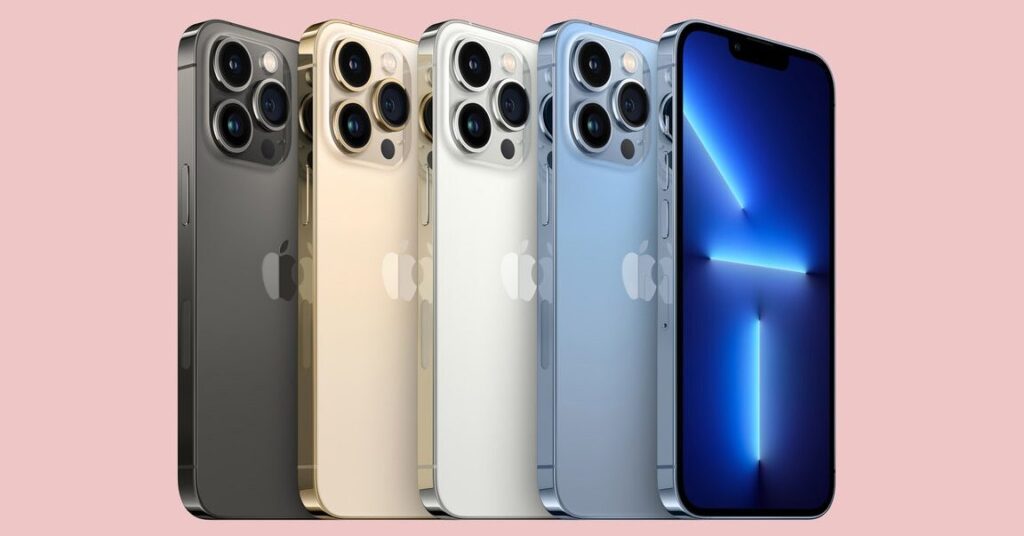
Enhancing Contrast: Tips and Tricks for Maintaining Optimal Display Quality on Your Apple iPhone
Enhancing Contrast: Tips and Tricks for Maintaining Optimal Display Quality on Your Apple iPhone
The display quality of your Apple iPhone plays a crucial role in providing an immersive and visually appealing user experience. One important aspect to consider is contrast, which refers to the difference between the darkest and lightest areas on the screen. Here are some tips and tricks to help you maintain optimal contrast on your iPhone:
1. Adjust Brightness: Start by adjusting the brightness level of your iPhone's display. You can do this by swiping up from the bottom of the screen to access the Control Center and then dragging the brightness slider to your desired level. Finding the right balance will enhance contrast and prevent eye strain.
2. Enable Dark Mode: Dark Mode is a feature available on newer iPhone models that replaces the bright white background with a darker color scheme. This not only reduces eye fatigue but also enhances contrast by making text and images stand out against the dark backdrop. To enable Dark Mode, go to Settings > Display & Brightness > Dark.
3. Increase Text Size: If you find it difficult to read small text on your iPhone, increasing the text size can improve contrast and legibility. Navigate to Settings > Display & Brightness > Text Size and adjust the slider to your preference. This will make text appear bolder and more prominent.
4. Use Bold Text: Enabling Bold Text can further enhance contrast by making system fonts thicker and easier to read. To activate this feature, go to Settings > Display & Brightness > Text Size > Bold Text. Note that enabling Bold Text requires a restart of your iPhone.
5. Reduce Transparency: By reducing transparency effects, you can increase the contrast between text and background elements. Go to Settings > Accessibility > Display & Text Size > Reduce Transparency and toggle the switch to enable this feature.
6. Experiment with Accessibility Settings: Apple provides various accessibility options that can help enhance contrast based on individual preferences. Explore features like Smart Invert Colors, Increase Contrast, and Color Filters under Settings > Accessibility > Display & Text Size.
By following these tips and utilizing the accessibility options available, you can maintain optimal contrast on your Apple iPhone's display. Remember to regularly adjust settings based on your environment and personal preferences to ensure a comfortable viewing experience.
Note: The use of HTML tags has been omitted from this response.

Unlocking the Convenience: Master Your Apple iPhone's Built-In Tip Calculator

Rev Up Your iPhone: The Top 0-60 Timer Apps to Track Your Speed Demons
Maintaining Privacy: How to Prevent Call History from Syncing Across Your iPhones
Uncovering the Clues: How to Tell if Someone Has Deleted Your Number on Their iPhone

Silencing the Chatter: How to Disable WhatsApp Call History on Your iPhone for Enhanced Privacy Management

Fixing the Flicker: How to Troubleshoot Your iPhone's Green Screen Glitch
Go up
Deja una respuesta