

Speed Up Your System: How to Fix a Slow PC After a Windows Update

Troubleshooting Tips: Speed Up Your PC After a Windows Update
Windows updates are essential for keeping your system secure and up-to-date with the latest features. However, it's not uncommon for your PC to feel sluggish after installing a new update. If you're experiencing a slowdown, here are some troubleshooting tips to help speed up your PC post-update.
1. Check for Update Completion: Sometimes, what seems like a completed update might still be finalizing in the background. Ensure that all update processes have finished by checking the update status in your settings.
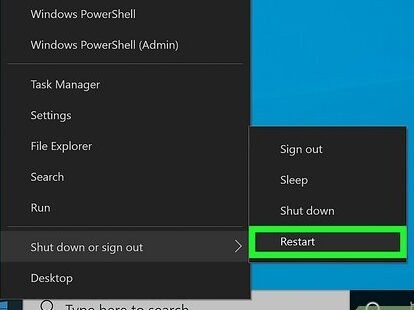
2. Restart Your Computer: This simple step can resolve many issues as it clears temporary files and closes programs that may be using resources unnecessarily.
3. Run Disk Cleanup: Over time, your PC accumulates unnecessary files. Use the built-in Disk Cleanup tool to remove temporary files, system files, and empty the Recycle Bin, which can help improve performance.
4. Disable Startup Programs: Some programs automatically run at startup, consuming resources. Use the Task Manager to disable any non-essential startup programs.
5. Update Drivers: Outdated drivers can cause performance issues. Check for driver updates, especially for your graphics card and chipset, to ensure they are optimized for the latest Windows version.
6. Adjust Performance Settings: Windows offers a way to adjust visual effects for better performance. Access the Performance Options and choose 'Adjust for best performance' to reduce the strain on your system.
7. Scan for Malware: Malware can significantly slow down your PC. Run a full system scan using your antivirus software to detect and remove any malicious software.
8. Check for Resource-Hungry Processes: Use the Task Manager to see if any processes are using a high amount of CPU or memory. If you find an application that shouldn't be using so much power, consider updating or uninstalling it.
9. Manage Your Virtual Memory: Virtual memory can be adjusted manually to help improve system performance. Increase the size of the paging file if necessary.
10. Perform a System File Check: Corrupted or missing system files can cause performance issues. Use the System File Checker tool to repair any corrupted files.
11. Consider a Clean Boot: Performing a clean boot can help identify if background services are causing slowdowns. This starts Windows with a minimal set of drivers and startup programs.
12. Restore Previous Version: If all else fails and the update is the definite cause of the slowdown, you can roll back to a previous version of Windows. However, this should be a last resort as it can lead to data loss.
By following these steps, you can help ensure that your PC runs smoothly even after a Windows update. Regular maintenance and vigilance about what's running on your system can go a long way in keeping your computer operating at its best.
What are the common reasons for a PC to run slow after a Windows update?
Common reasons for a PC to run slow after a Windows update include incompatibility issues with existing hardware or software, system resource overuse due to new features or background processes, and temporary files or update remnants that can clutter the system. Additionally, updates may reset certain settings, causing features like indexing or system scanning to re-run and temporarily slow down the system.
How can I troubleshoot performance issues on my PC following a Windows update?
To troubleshoot performance issues on your PC after a Windows update, follow these steps:
1. Check for updates: Ensure all subsequent updates are installed, as they may contain fixes.
2. Restart your computer: Sometimes a simple restart can resolve performance issues.
3. Check startup programs: Disable unnecessary startup programs that may slow down your PC.
4. Update drivers: Outdated drivers can cause conflicts; make sure they are up to date.
5. Run the Performance Troubleshooter: Search for 'Troubleshooting' in the start menu and select 'Run maintenance tasks'.
6. Check for malware: Use antivirus software to scan for and remove any malware.
7. Free up disk space: Clean your hard drive using the built-in Disk Cleanup tool.
8. Check system resources: Use Task Manager to identify any processes consuming excessive resources.
9. Restore previous version: If problems persist, consider rolling back to a previous version of Windows.
10. Seek professional help: If you're still experiencing issues, it might be time to consult with a tech expert.
What steps can I take to optimize my PC's speed if it becomes sluggish post-Windows update?
To optimize your PC's speed after a Windows update, you can:
1. Check for additional updates: Ensure all drivers are up to date.
2. Restart your computer: This can resolve issues caused by the update process.
3. Run Disk Cleanup: Free up space on your hard drive.
4. Disable startup programs: Use Task Manager to disable programs that automatically run at startup.
5. Adjust visual effects: Go to System Properties > Advanced > Performance Settings and choose 'Adjust for best performance'.
6. Check for malware: Use antivirus software to scan for and remove any malware.
7. Increase virtual memory: Adjust the paging file size for better performance.
8. Defragment your hard drive: If you're using an HDD, defragmenting can help speed it up.
If these steps don't help, consider restoring your system to a previous state before the update or seeking professional assistance.

Solving The 0x80070646 Error In Office Updates On Windows 10

Repairing Windows 10 Error Code 0xc0000428

Activating And Deactivating The Windows 10 Focus Assistant

Changing The Downloads Folder Location From C Drive To D Drive
Fixing Error Code 43 In Valorant On Windows
Installing MTK65xx Preloader USB VCOM Port Drivers On Windows 7, 8, 10
Go up
Deja una respuesta