

Ultimate Guide: How to Monitor Your Windows Laptop's Battery Health Like a Pro

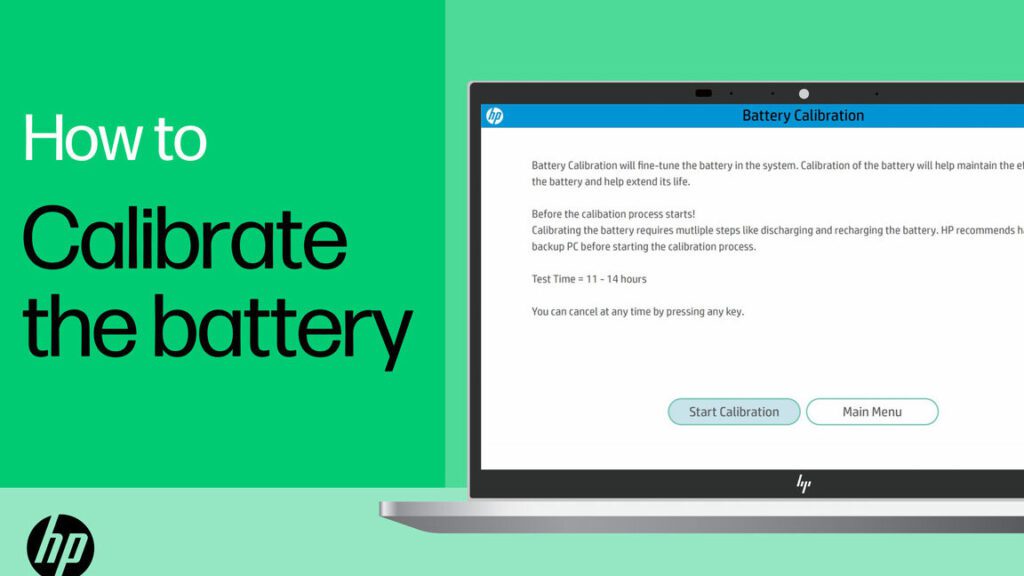
Step-by-Step Guide to Assessing Your Windows Laptop Battery Health
Checking your Windows laptop battery health is crucial for maintaining optimal performance and longevity of your device. Here's a step-by-step guide to help you assess the condition of your battery:
1. Access the Command Prompt: Press the Windows key + X and select "Command Prompt (Admin)" from the menu. This opens the command line interface with administrative privileges.
2. Run the Battery Report: Type in powercfg /batteryreport and hit Enter. This command instructs Windows to generate a detailed battery report.
3. Locate the Battery Report: After executing the command, Windows will save a battery life report as an HTML file on your system. You'll see a message indicating the file path, usually in the form of C:WINDOWSsystem32battery-report.html.
4. Open the Battery Report: Navigate to the file location provided in the Command Prompt using File Explorer. Double-click on the battery-report.html file to open it in your default web browser.
5. Analyze the Battery Report: The report contains several sections. Look for the Battery Information section to find details such as Design Capacity and Full Charge Capacity. The difference between these two values indicates how much the battery capacity has degraded over time.
6. Check Recent Usage: The report also includes a Recent Usage section that shows power states over the last three days. This can give you insight into your battery's performance during typical use.
7. Review Battery Usage History: The Battery Usage section displays a graph of battery drain over time. This visual representation helps identify any unusual patterns or rapid declines in battery life.
8. Examine Battery Capacity History: In the Battery Capacity History section, compare the full charge capacity over time to see how it has decreased from the original design capacity.
9. Consider Battery Life Estimates: Finally, the Battery Life Estimates section provides an estimate of your battery's lifespan based on observed discharges. If these estimates are significantly lower than your manufacturer's specifications, it may be time to consider replacing your battery.
By following these steps, you can gain a comprehensive understanding of your Windows laptop battery health and take necessary actions to ensure your device continues to serve you well.
What are the steps to check battery health on a Windows 10 laptop using the built-in battery report feature?
To check the battery health on a Windows 10 laptop using the built-in battery report feature, follow these steps:
1. Open Command Prompt by typing `cmd` in the search bar.
2. Type the command `powercfg /batteryreport` and press Enter.
3. This will generate a battery life report saved under the path shown in the Command Prompt window (typically in the user folder).
4. Navigate to the file location, and open the battery-report.html file in a web browser to view your laptop's battery health details.
Can I use third-party software to monitor my Windows laptop's battery health, and if so, which ones are recommended?
Yes, you can use third-party software to monitor your Windows laptop's battery health. Recommended options include BatteryInfoView by NirSoft and BatteryBar. These tools provide detailed information about your battery's status, wear level, and capacity.
How do I interpret the information provided in the Windows Battery Report to assess the overall health of my laptop's battery?
To assess the overall health of your laptop's battery using the Windows Battery Report, focus on the Design Capacity and Full Charge Capacity values. The Design Capacity is the original energy storage capacity of the battery, while Full Charge Capacity shows the current maximum charge it can hold. A significant difference between these two indicates battery wear. Additionally, review the Battery Usage graph for discharge patterns and the Battery Life Estimates section to see if the actual battery life matches the manufacturer's estimates. If the Full Charge Capacity is much lower than the Design Capacity or if the battery life estimates have decreased substantially, it may be time to consider replacing the battery.

Solving The 0x80070646 Error In Office Updates On Windows 10

Repairing Windows 10 Error Code 0xc0000428

Activating And Deactivating The Windows 10 Focus Assistant

Changing The Downloads Folder Location From C Drive To D Drive
Fixing Error Code 43 In Valorant On Windows
Installing MTK65xx Preloader USB VCOM Port Drivers On Windows 7, 8, 10
Go up
Deja una respuesta