

Tap and Go: The Ultimate Guide to Making NFC Payments with Revolut

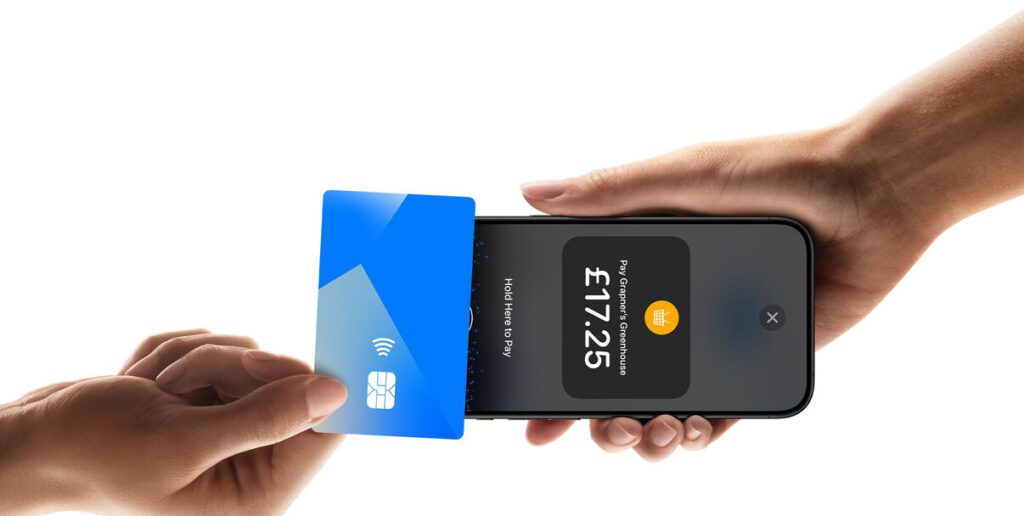
How to Make NFC Payments with Revolut: A Step-by-Step Guide
NFC (Near Field Communication) payments are a convenient and secure way to make transactions without the need for physical cards. If you're using Revolut, one of the leading fintech platforms, making NFC payments is straightforward. Here's a step-by-step guide on how to use your Revolut account to make NFC payments:
Step 1: Ensure Your Device Supports NFC
Before you can make an NFC payment, confirm that your smartphone has NFC capabilities. Most modern smartphones come with NFC technology built-in. You can usually find this information in the settings menu under 'Connections' or 'NFC and sharing'.
Step 2: Set Up Revolut on Your Smartphone
Download the Revolut app from the Google Play Store or Apple App Store. Sign up or log in to your account. Make sure your Revolut account is topped up or linked to another bank account or card for funding.
Step 3: Add Your Revolut Card to a Digital Wallet
To make NFC payments, you need to add your Revolut card to a digital wallet such as Google Pay, Apple Pay, or Samsung Pay. This process typically involves verifying your card details and may require additional authentication.
Step 4: Enable NFC on Your Smartphone
Go to your phone's settings and ensure that NFC is turned on. The exact path to this setting can vary, but it's commonly found under 'Connections' or 'Wireless & networks'.
Step 5: Make an NFC Payment
Once everything is set up, making an NFC payment is simple:
1. Unlock your smartphone.
2. Hold the back of your device close to the NFC-enabled payment terminal.
3. Wait for the confirmation that the payment was successful. This is usually indicated by a checkmark on the screen or an audible beep.
Step 6: Check Your Revolut App for the Transaction
After making a payment, you can open the Revolut app to view the transaction details. The app provides real-time notifications and tracking of all your expenditures.
Remember, while NFC payments are generally secure, it's important to keep your smartphone and Revolut app updated with the latest security features. Always use a strong password or biometric authentication for your phone and Revolut app to protect your financial information.
How do I set up NFC payments on my Revolut app?
To set up NFC payments on your Revolut app, follow these steps:
1. Open the Revolut app on your smartphone.
2. Go to the 'Cards' section and select the card you want to use for NFC payments.
3. Tap on 'Add to Google Pay' or 'Add to Apple Wallet' depending on your device.
4. Follow the on-screen instructions to complete the setup.
Once added, you can use your phone to make contactless payments wherever NFC payments are accepted.
What should I do if my NFC payment with Revolut is not working?
If your NFC payment with Revolut is not working, try the following steps:
1. Ensure that NFC is enabled on your phone.
2. Check if the Revolut app is up to date.
3. Verify that you have an active internet connection.
4. Make sure your card is selected for contactless payments in the app.
5. If the issue persists, contact Revolut support for further assistance.
Are there any fees associated with using NFC for transactions through Revolut?
As of my last update, Revolut does not charge a fee for using NFC (Near Field Communication) for transactions. However, it's always best to check the latest fee schedule on the Revolut website or app, as fees can change over time.

Troubleshooting Guide: How to Resolve the 'Klarna Not Letting Me Pay' Issue at Online Stores

Scan and Pay: A Step-by-Step Guide to Using Barcode Payments at Checkout

Seamless Shopping: How to Use Klarna for Payment on Zalando

Mastering QR Code Payments: A Step-by-Step Guide to Using Mercado Pago

Scan to Pay: The Ultimate Guide to Making Payments with Barcode Technology

Seamless Transactions: How to Effortlessly Pay with Crypto.com
Go up
Deja una respuesta