

Securing Your Online Presence: A Step-by-Step Guide to Properly Setting Up Two-Factor Authentication (2FA)

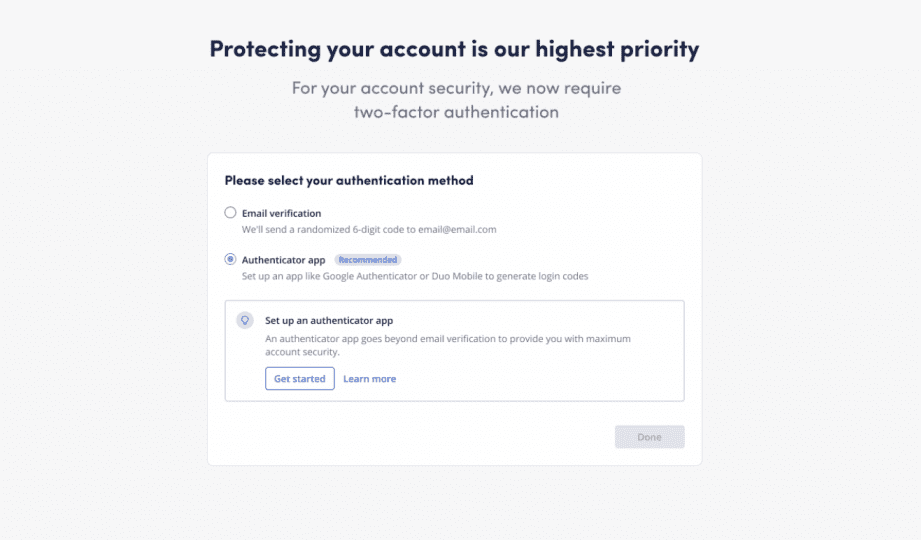
Step-by-Step Guide to Setting Up Two-Factor Authentication (2FA) Properly
Two-factor authentication (2FA) is an essential layer of security that adds a second verification step to your login process. Here's a step-by-step guide to setting up 2FA properly:
Step 1: Choose a 2FA Method
The first step is to decide which type of 2FA method you want to use. The most common methods include:
- SMS-based verification: A code is sent to your mobile phone via text message.
- Authentication apps: Apps like Google Authenticator or Authy generate time-sensitive codes.
- Hardware tokens: Physical devices that generate codes or use biometrics.
Step 2: Enable 2FA on Your Account
Log in to the account you wish to secure and navigate to the security settings. Look for the option to enable two-factor authentication or multi-factor authentication.
Step 3: Set Up Your Preferred 2FA Method
Follow the prompts to set up your chosen 2FA method. If you're using an authentication app, you will likely need to scan a QR code with your phone's camera. For SMS-based verification, you'll need to provide your phone number.
Step 4: Verify Setup
Once you've set up your 2FA method, the service will typically ask you to verify that it's working. Enter the code you receive via SMS or from your authentication app to confirm that the setup is correct.
Step 5: Backup Your 2FA Method
It's crucial to have a backup in case you lose access to your primary 2FA method. This could be backup codes, which you should print or write down and store securely, or setting up a secondary device in your authentication app.
Step 6: Keep Your Recovery Information Secure
Store any recovery codes or backup information in a safe place, such as a locked drawer or a password manager with secure notes functionality. Do not store them in plain sight or in easily accessible files on your computer.
Step 7: Regularly Update Your Security Settings
Periodically check your account's security settings to ensure that your 2FA information is up-to-date. Update your phone number or change your preferred method if necessary.
By following these steps, you can ensure that your accounts are much more secure against unauthorized access. Remember, while 2FA significantly enhances security, it's also important to use strong, unique passwords for all of your accounts.
What are the steps to enable Two-Factor Authentication (2FA) on a Google account?
To enable Two-Factor Authentication (2FA) on a Google account, follow these steps:
1. Sign in to your Google Account.
2. Go to the "Security" section.
3. Under "Signing in to Google", select "2-Step Verification".
4. Click "Get started" and follow the on-screen instructions to set up 2FA.
You may be required to provide a phone number for verification codes and choose an additional second step, such as Google Authenticator or backup codes.
How can you set up 2FA using an authenticator app for online banking services?
To set up 2FA (Two-Factor Authentication) using an authenticator app for online banking services, follow these steps:
1. Download a reputable authenticator app on your smartphone, such as Google Authenticator or Authy.
2. Log in to your online banking account and navigate to the security settings or 2FA section.
3. Select the option to enable 2FA or add a new device.
4. Choose the authenticator app option when prompted.
5. Open the authenticator app on your phone and scan the QR code displayed on your banking setup page.
6. Enter the one-time code generated by the app into your online banking to verify the setup.
7. Ensure you save any backup codes provided in case you lose access to your authenticator app.
Remember to keep your mobile device secure, as it is now an essential part of your banking security.
What precautions should be taken when configuring 2FA to ensure it provides maximum security?
When configuring 2FA (Two-Factor Authentication), ensure maximum security by using a reliable authentication app like Google Authenticator or Authy instead of SMS whenever possible, as SMS can be intercepted. Always keep backup codes in a secure location in case your primary 2FA method is unavailable. Additionally, regularly review and update your recovery options and avoid sharing your 2FA codes with anyone.

5 Steps to Detect a Virus on Your PC Without Antivirus Software

Top 10 Cutting-Edge Alternatives to IPTV Smarters Pro in 2026: Streamlining Your Viewing Experience

Projecting the Future: What to Expect from the VA Disability Pay Scale in 2026

Stream Like a Pro: The Ultimate Guide to Watching IPTV Playlists with VLC Media Player on Your PC

Securing Your Inbox: A Step-by-Step Guide to Detecting Email Leaks on the Dark Web

Effortless Editing: Mastering One-Click AI Background Removal from Images
-
-
 F. Tips dice:
 It's great to see that you are taking steps to enhance your online security by setting up two-factor authentication (2FA). Following these detailed steps for choosing and enabling a 2FA method, setting it up properly, and ensuring you have a backup plan in place will significantly strengthen the protection of your online accounts. Keep up the good work in securing your online presence!
-
 F. Tips
 Deja una respuesta
This step-by-step guide to setting up two-factor authentication (2FA) is truly invaluable for anyone looking to enhance the security of their online presence. The content is well-organized, easy to follow, and provides clear instructions on choosing and implementing various 2FA methods. The inclusion of important steps such as setting up backup methods highlights the thoroughness and thoughtfulness of the guide.
Overall, this guide serves as a comprehensive resource for individuals seeking to bolster their online security measures, and the detailed explanations make it accessible even to those who may be new to the concept of 2FA. Kudos to the author for creating such a practical and informative piece that can help users protect their accounts and data effectively.