

5 Steps to Detect a Virus on Your PC Without Antivirus Software

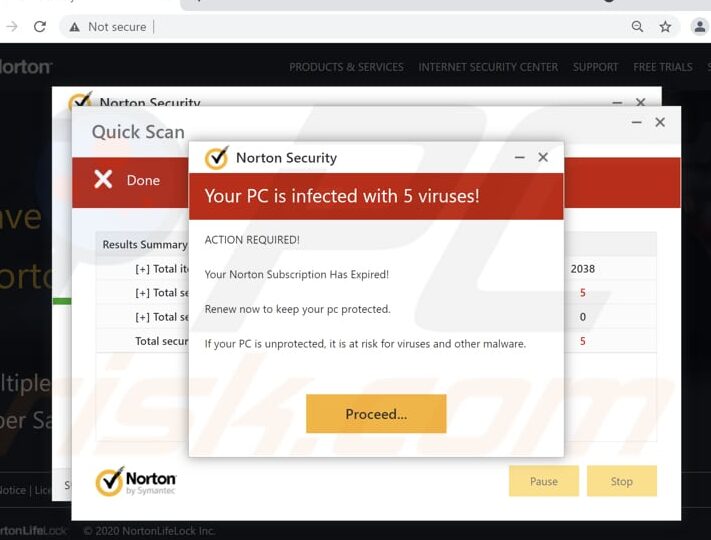
Detecting Malware Manually: Signs Your PC Might Be Infected
Detecting malware on your PC without the aid of antivirus software can be challenging, but there are several telltale signs that might indicate an infection. If you suspect that your computer has been compromised, here are some symptoms to look out for:
1. Unusual Slowness: If your PC is running significantly slower than usual without any apparent reason, it could be a sign that malware is consuming system resources.
2. Frequent Crashes or Blue Screens of Death (BSOD): While occasional crashes can happen due to various reasons, consistent system instability and frequent BSODs may suggest the presence of malicious software.
3. Pop-up Ads and Unwanted Programs: An influx of pop-up ads or the unexpected installation of new programs or toolbars could be indicative of adware or other intrusive software.
4. Redirected Internet Searches: If your web searches are being redirected to different sites, especially those that look suspicious, this could be the work of browser-hijacking malware.
5. Disabled Security Software: Malware often tries to disable antivirus programs and firewalls. If you find that your security software has been turned off without your input, it's a red flag.
6. Unusual Network Activity: Excessive data usage or strange network activity can signal that your PC is part of a botnet or that malware is transferring data to and from your computer.
7. Ransom Messages: One of the most obvious signs of malware, particularly ransomware, is a message demanding payment to unlock your computer or files.
8. Strange System Messages or Unauthorized Changes: If you're seeing system warnings that don't seem right or if settings are changing without your input, it could be a sign of a malicious presence.
9. Files Multiplying or Disappearing: Should you notice files duplicating without any action on your part, or files and folders disappearing, malware could be at play.
10. High CPU or Disk Usage: Check your Task Manager for any unfamiliar processes that are using a high percentage of your CPU or disk. These could be malicious processes running in the background.
If you observe any of these symptoms, it's important to take action. While antivirus software is the best line of defense against malware, in its absence, you can try to identify and remove the malware manually. This involves booting your PC in Safe Mode, reviewing installed programs, checking startup programs, and looking into your system's health and file integrity. However, manual removal can be risky and may not always be effective, especially against sophisticated threats. Therefore, it's generally recommended to use reputable antivirus software to protect your PC from malware infections.
What are the common signs that indicate my PC might be infected with a virus without using antivirus software?
Common signs that indicate your PC might be infected with a virus include unusual slowness in system performance, frequent crashes or freezes, unexpected pop-up ads, new programs or icons appearing without your consent, and redirected web searches or changed homepage settings. Additionally, if you notice unusual outgoing network traffic or friends receiving strange emails from you, it could also suggest a virus infection.
How can I use Windows built-in tools to check for viruses or malware on my PC?
You can use Windows Security (formerly Windows Defender) to check for viruses or malware. Follow these steps:
1. Click on the Start menu and select Settings.
2. Go to Update & Security and click on Windows Security.
3. Choose Virus & threat protection.
4. Under Current threats, select Quick scan to run a basic scan. If you want a more thorough scan, click on Scan options and choose Full scan.
Ensure your Windows is up-to-date to have the latest virus definitions.
Are there any manual checks I can perform to detect suspicious activity that suggests a virus presence on my computer?
Yes, there are several manual checks you can perform to detect suspicious activity that may suggest a virus presence on your computer:
1. Check for unusual system slowdowns, crashes, or behavior.
2. Look for unexpected pop-up windows, especially those that encourage you to visit unusual sites or download antivirus software.
3. Monitor your computer's CPU and memory usage through Task Manager (Windows) or Activity Monitor (macOS) to spot unexpected resource usage.
4. Examine your startup programs and remove any unfamiliar applications that automatically run at boot.
5. Use your file explorer to search for new, unknown files or programs in common directories such as Program Files or Downloads.
6. Check your browser extensions and installed programs for anything you didn't install yourself.
7. Be wary of emails with attachments or links from unknown sources, which can be phishing attempts or malware distribution methods.
If you notice any of these signs, it's advisable to run a reputable antivirus or anti-malware scan to confirm and remove any potential threats.

Securing Your Online Presence: A Step-by-Step Guide to Properly Setting Up Two-Factor Authentication (2FA)

Top 10 Cutting-Edge Alternatives to IPTV Smarters Pro in 2026: Streamlining Your Viewing Experience

Projecting the Future: What to Expect from the VA Disability Pay Scale in 2026

Stream Like a Pro: The Ultimate Guide to Watching IPTV Playlists with VLC Media Player on Your PC

Securing Your Inbox: A Step-by-Step Guide to Detecting Email Leaks on the Dark Web

Effortless Editing: Mastering One-Click AI Background Removal from Images
Go up
Deja una respuesta