

Unlocking Endless Entertainment: How to Set Up IPTV on Kodi for Seamless Streaming

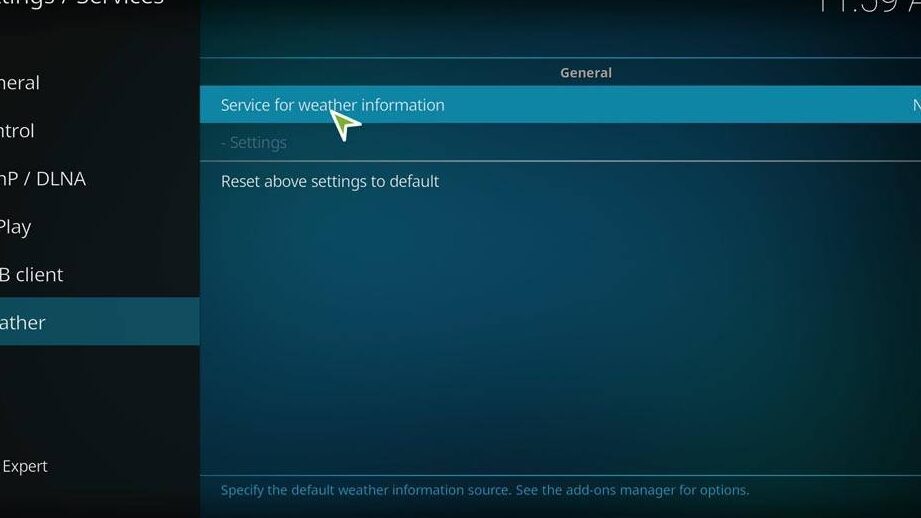
How to Set Up IPTV on Kodi: A Step-by-Step Guide
Setting up IPTV on Kodi can transform your streaming experience, allowing you to access a wide range of television channels over the internet. Here's a step-by-step guide to get you started:
Step 1: Install Kodi
Before you can set up IPTV, ensure that you have Kodi installed on your device. Kodi is available for download on various platforms including Windows, macOS, Android, and iOS. Visit the official Kodi website to download the latest version.
Step 2: Allow Unknown Sources
Kodi has a security feature that prevents the installation of third-party add-ons from unknown sources. To enable IPTV, you'll need to disable this feature:
- Open Kodi and click on the Settings icon (cogwheel).
- Navigate to System Settings > Add-ons.
- Toggle the switch next to Unknown Sources to allow the installation of third-party add-ons.
Step 3: Find an IPTV Add-on
There are several IPTV add-ons available for Kodi, but it's important to choose one that is reputable and provides quality service. Some popular options include PVR IPTV Simple Client, which is available in the official Kodi add-on repository.
Step 4: Install the IPTV Add-on
To install an IPTV add-on such as PVR IPTV Simple Client:
- Go back to the main menu and select Add-ons.
- Click on the open box icon (Add-on browser) at the top.
- Choose Install from repository > Kodi Add-on repository > PVR clients.
- Scroll down to find PVR IPTV Simple Client and click on it.
- Press the Install button.
Step 5: Configure the IPTV Add-on
After installing the IPTV add-on, you'll need to configure it with your IPTV service details:
- Once installed, click on Configure.
- In the General section, if you have an M3U playlist URL provided by your IPTV service provider, select M3U Play List URL and enter the URL.
- If you have an XMLTV URL for an EPG (Electronic Program Guide), enter it in the EPG Settings section.
Step 6: Enable the IPTV Add-on
With the configuration complete, you must now enable the add-on:
- Navigate back to the main menu and go to Add-ons > My add-ons > PVR clients.
- Select PVR IPTV Simple Client and click Enable.
Step 7: Restart Kodi
For the changes to take effect, restart Kodi. Upon rebooting, the IPTV channels should load and be accessible through the TV section of Kodi.
Step 8: Access Your Channels
Finally, navigate to the TV section on the main screen of Kodi. Here, you should see all the channels provided by your IPTV service. You can browse through them and select any channel to start watching.
By following these steps, you can easily set up IPTV on Kodi and enjoy a vast selection of live TV channels from around the world. Remember to always use legitimate and legal IPTV services to ensure compliance with copyright laws and regulations.
What are the steps to set up an IPTV service on Kodi?
To set up an IPTV service on Kodi, follow these steps:
1. Open Kodi and go to the 'Add-ons' section.
2. Click on the 'My Add-ons' tab and then select 'PVR'.
3. Choose 'PVR IPTV Simple Client' and click 'Configure'.
4. Under 'General', enter the URL provided by your IPTV service for the M3U playlist.
5. If required, fill in the EPG settings with the EPG URL from your IPTV provider.
6. Click 'OK', then 'Enable' the add-on.
7. Restart Kodi to load the IPTV channels.
Make sure you have a subscription to an IPTV service that provides the necessary URLs for streaming.
Can you recommend some reliable IPTV add-ons for Kodi?
Certainly! Some reliable IPTV add-ons for Kodi include Catch-Up TV & More, which offers a variety of live TV and catch-up content, and SGTV, known for live sports and TV channels. Always ensure you are using add-ons that respect content licensing.
How do I troubleshoot buffering issues with IPTV streams on Kodi?
To troubleshoot buffering issues with IPTV streams on Kodi, follow these steps:
1. Check your internet connection: Ensure you have a stable and fast internet connection suitable for streaming.
2. Clear cache: Go to Kodi's settings and clear the cache to free up space and resources.
3. Update Kodi and add-ons: Make sure you're running the latest version of Kodi and all related add-ons are up to date.
4. Use a VPN: Sometimes ISPs throttle streaming traffic; using a VPN can prevent this.
5. Adjust buffer settings: Modify the advancedsettings.xml file to increase buffer size.
6. Reduce stream quality: If your internet speed is limited, try lowering the stream's resolution.
7. Check server status: The issue might be with the IPTV service itself. Check if others are experiencing similar problems.
Remember, always use legitimate and authorized IPTV services to ensure reliability and legality.

Securing Your Online Presence: A Step-by-Step Guide to Properly Setting Up Two-Factor Authentication (2FA)

5 Steps to Detect a Virus on Your PC Without Antivirus Software

Top 10 Cutting-Edge Alternatives to IPTV Smarters Pro in 2026: Streamlining Your Viewing Experience

Projecting the Future: What to Expect from the VA Disability Pay Scale in 2026

Stream Like a Pro: The Ultimate Guide to Watching IPTV Playlists with VLC Media Player on Your PC

Securing Your Inbox: A Step-by-Step Guide to Detecting Email Leaks on the Dark Web
Go up
Deja una respuesta