

Unlocking Endless Entertainment: How to Set Up IPTV on Your Fire TV Stick

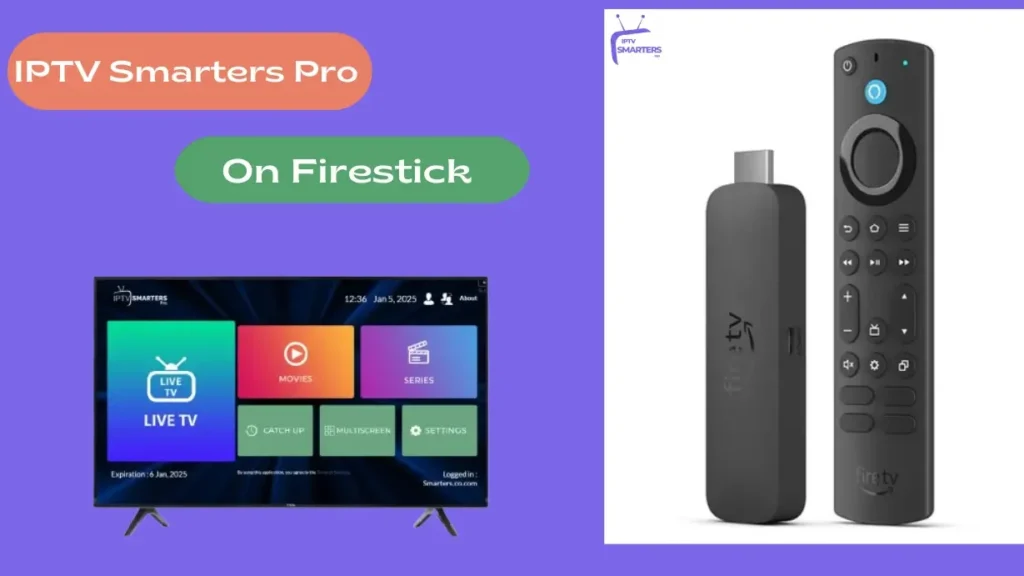
How to Set Up IPTV on Your Fire TV Stick: A Step-by-Step Guide
Setting up IPTV (Internet Protocol Television) on your Fire TV Stick can unlock a world of streaming possibilities, offering access to live television channels and on-demand content over the internet. Here's a step-by-step guide to get you started:
Step 1: Enable Apps from Unknown Sources
Before installing any IPTV app, you need to allow your Fire TV Stick to install third-party apps.
1. Navigate to the Settings menu at the top of your Fire TV interface.
2. Scroll right and select My Fire TV or Device.
3. Choose Developer Options.
4. Turn on Apps from Unknown Sources.
Step 2: Install a Downloader App
The Downloader app will help you download the IPTV app apk file since it's not available directly from the Amazon Appstore.
1. Go back to the home screen and select the Search icon.
2. Type in "Downloader" and select the app when it appears.
3. Click Download or Get to install the Downloader app.
Step 3: Download an IPTV App
With the Downloader app installed, you can now download an IPTV service provider app.
1. Open the Downloader app.
2. Enter the URL for the IPTV apk file provided by your IPTV service. Ensure it's the correct and official URL to avoid downloading malicious software.
3. Select Go to download the apk file.
Step 4: Install the IPTV App
Once the apk has downloaded, the installation prompt will appear.
1. Click on Install.
2. After the installation is complete, select Done. You can choose to delete the apk file to save space on your device.
Step 5: Launch Your IPTV App
Now that the IPTV app is installed, you can open it.
1. Hold down the Home button on your Fire TV remote and select Apps.
2. Find your IPTV app and open it.
3. Enter your login credentials provided by your IPTV service.
Step 6: Configure IPTV Settings
Most IPTV apps will have a settings section where you can adjust playback options, EPG (Electronic Program Guide) settings, and more.
1. Explore the settings to optimize your viewing experience.
2. Set up any necessary parental controls or stream quality preferences.
Step 7: Enjoy Streaming
With everything set up, you can start browsing through the channels and content provided by your IPTV service.
Remember, the legality of IPTV services can vary depending on the source and content they provide. Always ensure that you are using a legitimate service that respects copyright laws and content distribution rights.
How do I install an IPTV service on a Fire TV Stick?
To install an IPTV service on a Fire TV Stick, follow these steps:
1. Go to your Fire TV Stick's Settings.
2. Navigate to My Fire TV > Developer options.
3. Enable Apps from Unknown Sources.
4. Return to the home screen and install the Downloader app from the Amazon Appstore.
5. Open Downloader and enter the URL for the IPTV service's APK file.
6. Download and install the APK.
7. Open the IPTV app and enter your subscription details.
Remember to use a VPN if your IPTV service requires it or to protect your privacy.
What are the best IPTV apps compatible with Amazon Fire TV Stick?
Some of the best IPTV apps compatible with Amazon Fire TV Stick include VLC for Fire, IPTV Smarters, GSE Smart IPTV, and Perfect Player IPTV. These apps are well-regarded for their streaming capabilities, user-friendly interfaces, and compatibility with various IPTV services.
Can I watch live TV channels on a Fire TV Stick using IPTV, and is it legal?
Yes, you can watch live TV channels on a Fire TV Stick using IPTV apps. However, whether it is legal depends on the source of the content. Using IPTV services that have proper licensing to stream their content is legal. Conversely, accessing channels without paying for them or using unauthorized IPTV services may be illegal and could result in penalties. Always ensure that the service you use complies with the law.

Securing Your Online Presence: A Step-by-Step Guide to Properly Setting Up Two-Factor Authentication (2FA)

5 Steps to Detect a Virus on Your PC Without Antivirus Software

Top 10 Cutting-Edge Alternatives to IPTV Smarters Pro in 2026: Streamlining Your Viewing Experience

Projecting the Future: What to Expect from the VA Disability Pay Scale in 2026

Stream Like a Pro: The Ultimate Guide to Watching IPTV Playlists with VLC Media Player on Your PC

Securing Your Inbox: A Step-by-Step Guide to Detecting Email Leaks on the Dark Web
Go up
Deja una respuesta